When managing a network, you often need more than just blocking traffic by source IP.
That's where Extended Access Control Lists (ACLs) come in.An Extended ACL is different from a Standard ACL. It allows you to filter traffic by source IP, destination IP, protocol, and port numbers.
Let's say you have this topology:
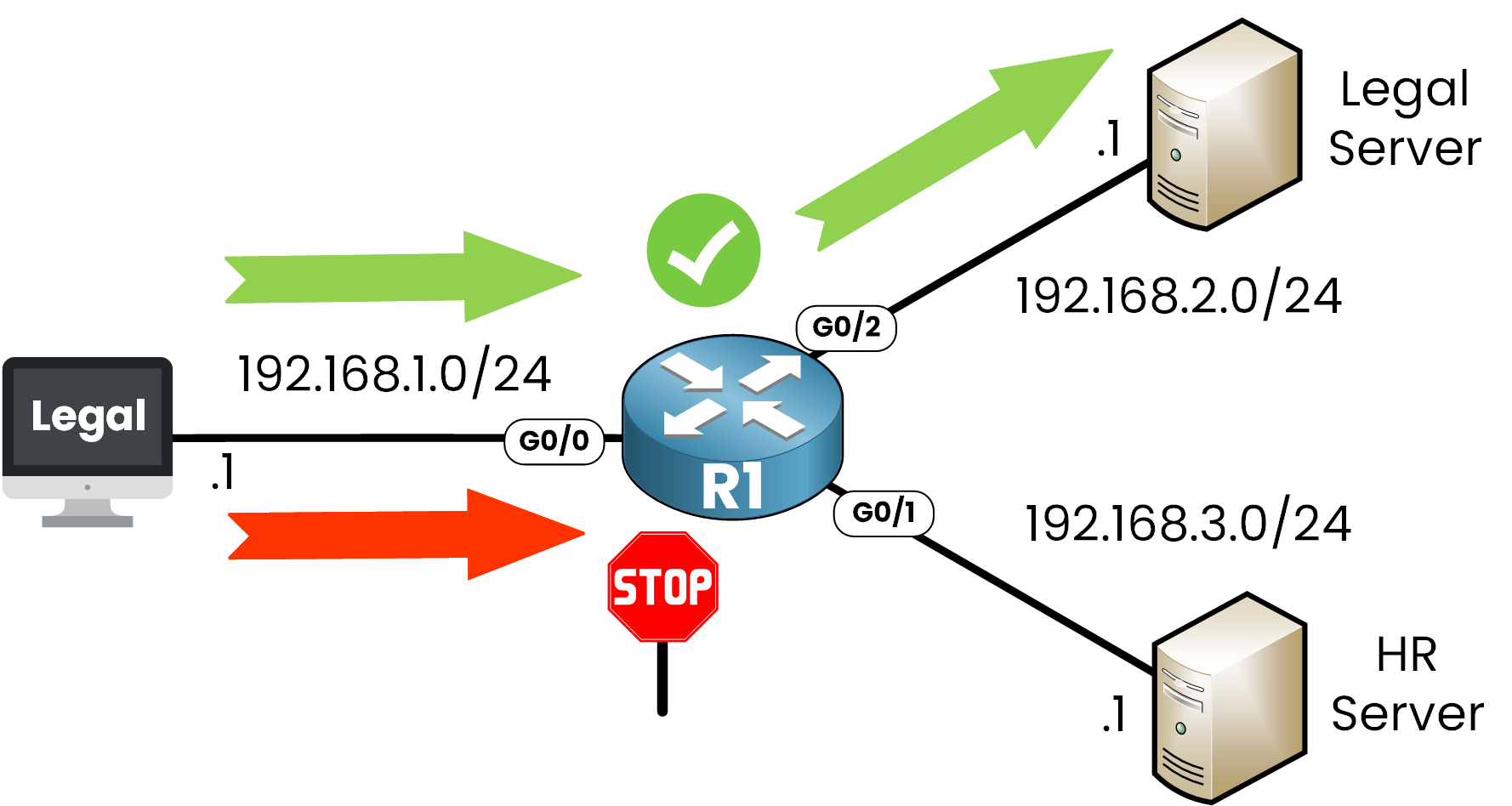
Figure 1 – Extended ACL Use Case
In this example, we want to control access using an Extended ACL:
Allow HTTPS traffic from the Legal PC to a secure Legal Server at 192.168.2.1
Deny all access from the Legal PC to the HR Server at 192.168.3.1
This is a common situation that requires Extended ACLs. Standard ACLs can't filter by protocol or port.
Answer the question below
Click 'Complete' to continue
Now that you know what an Extended ACL is, let's go through the steps to set one up on a Cisco router.
Step 1 - Enter Global Configuration Mode
Start by entering configuration mode:
R1# conf t
Enter configuration commands, one per line. End with CTRL/Z.
Then, check available ACL types with the ip access-list ? command:
R1(config)# ip access-list ?
  extended    Extended Access List
  helper      Access List acts on helper-address
  log-update  Control access list log updates
  logging     Control access list logging
  resequence  Resequence Access List
  standard    Standard Access List
As you can see, we have the option to create either a standard or an extended ACL.
We'll proceed with extended.Step 2 – Create the Extended ACL
Now let's check the available formats for Extended ACLs:
R1(config)# ip access-list extended ?
  <100-199>    Extended IP access-list number
  <2000-2699>  Extended IP access-list number (expanded range)
  WORD         Access-list name
Extended ACLs can be:
Numbered (ranges: 100–199 or 2000–2699)
Named (custom name of your choice)
Let's create a numbered ACL 101:
In this example, we will create a numbered Extended ACL with the number 101.
R1(config)# ip access-list extended 101
R1(config-ext-nacl)#
You are now in Extended ACL configuration mode, ready to define rules.
Step 3 - Permit HTTPS to the Legal Server
We want to allow HTTPS traffic (TCP port 443) from the Legal PC to the Legal Server.
Choose the Protocol
Start with the permit, then see the protocol options:
R1(config-ext-nacl)# permit ?
  <0-255>       An IP protocol number
  ahp           Authentication Header Protocol
  eigrp         Cisco's EIGRP routing protocol
  esp           Encapsulation Security Payload
  gre           Cisco's GRE tunneling
  icmp          Internet Control Message Protocol
  igmp          Internet Gateway Message Protocol
  ip            Any Internet Protocol
  ipinip        IP in IP tunneling
  nos           KA9Q NOS compatible IP over IP tunneling
  object-group  Service object group
  ospf          OSPF routing protocol
  pcp           Payload Compression Protocol
  pim           Protocol Independent Multicast
  sctp          Stream Control Transmission Protocol
  tcp           Transmission Control Protocol
  udp           User Datagram Protocol
We want HTTPS, which runs over TCP, so:
R1(config-ext-nacl)# permit tcp ?
  A.B.C.D       Source address
  any           Any source host
  host          A single source host
  object-group  Source network object group
Define the Source IP Address
Let's specify the Legal PC as the source:
R1(config-ext-nacl)# permit tcp host 192.168.1.1 ?
  A.B.C.D       Destination address
  any           Any destination host
  eq            Match only packets on a given port number
  gt            Match only packets with a greater port number
  host          A single destination host
  lt            Match only packets with a lower port number
  neq           Match only packets not on a given port number
  object-group  Destination network object group
  range         Match only packets in the range of port numbers
Define the Destination IP Address
We want to reach the Legal Server:
R1(config-ext-nacl)# permit tcp host 192.168.1.1 host 192.168.2.1 ?
  ack          Match on the ACK bit
  dscp         Match packets with given dscp value
  eq           Match only packets on a given port number
  established  Match established connections
  fin          Match on the FIN bit
  fragments    Check non-initial fragments
// OUTPUT OMITTED FOR BREVITY
To choose the port number to filter, we use eq, as you can see in the CLI.
Match the HTTPS Port (443)
We now filter only HTTPS traffic (port 443):
R1(config-ext-nacl)# permit tcp host 192.168.1.1 host 192.168.2.1 eq ?
  <0-65535>    Port number
  bgp          Border Gateway Protocol (179)
  chargen      Character generator (19)
  cmd          Remote commands (rcmd, 514)
  daytime      Daytime (13)
  discard      Discard (9)
  domain       Domain Name Service (53)
  drip         Dynamic Routing Information Protocol (3949)
  echo         Echo (7)
  exec         Exec (rsh, 512)
  finger       Finger (79)
  ftp          File Transfer Protocol (21)
// OUTPUT OMITTED FOR BREVITY
And we complete the command with the port:
R1(config-ext-nacl)# permit tcp host 192.168.1.1 host 192.168.2.1 eq 443This command allows only HTTPS traffic from the Legal PC to the Legal Server.
Step 4 - Deny All Traffic to HR Server
Every ACL ends with an implicit deny all. Any traffic that lacks explicit permission will be blocked automatically.
In our case:
We allowed HTTPS traffic to the Legal Server (192.168.2.1)
We did not allow anything to the HR Server (192.168.3.1)
→ This traffic is denied by default.
Here's how to write that deny rule manually, just to show you how it works.
R1(config-ext-nacl)# deny ip host 192.168.1.1 host 192.168.3.1Element
Description
denyBlock the traffic
ipAll protocols (TCP, UDP, ICMP, etc.)
host 192.168.1.1Source: Legal PC
host 192.168.3.1Destination: HR Server
Table 1 – Breakdown of an Explicit Deny Rule in an Extended ACL
This rule is not required in this case; it is here to show you how to write an explicit deny rule.
Answer the question below
Numbered Extended ACLs use which number range?
An Extended ACL won't filter any traffic until it's applied to an interface.
This step tells the router where to inspect traffic and in which direction.Placement Strategy
Extended ACLs filter traffic based on:
Source IP
Destination IP
Protocol
Port number
To reduce unnecessary traffic across the network, Extended ACLs should be applied as close as possible to the source.
This way, unwanted packets are dropped early, before consuming bandwidth.
Example Scenario
In our example:
The Legal PC (192.168.1.1) is the source.
We want to:
Allow HTTPS traffic to the Legal Server (192.168.2.1)
Block all access to the HR Server (192.168.3.1)
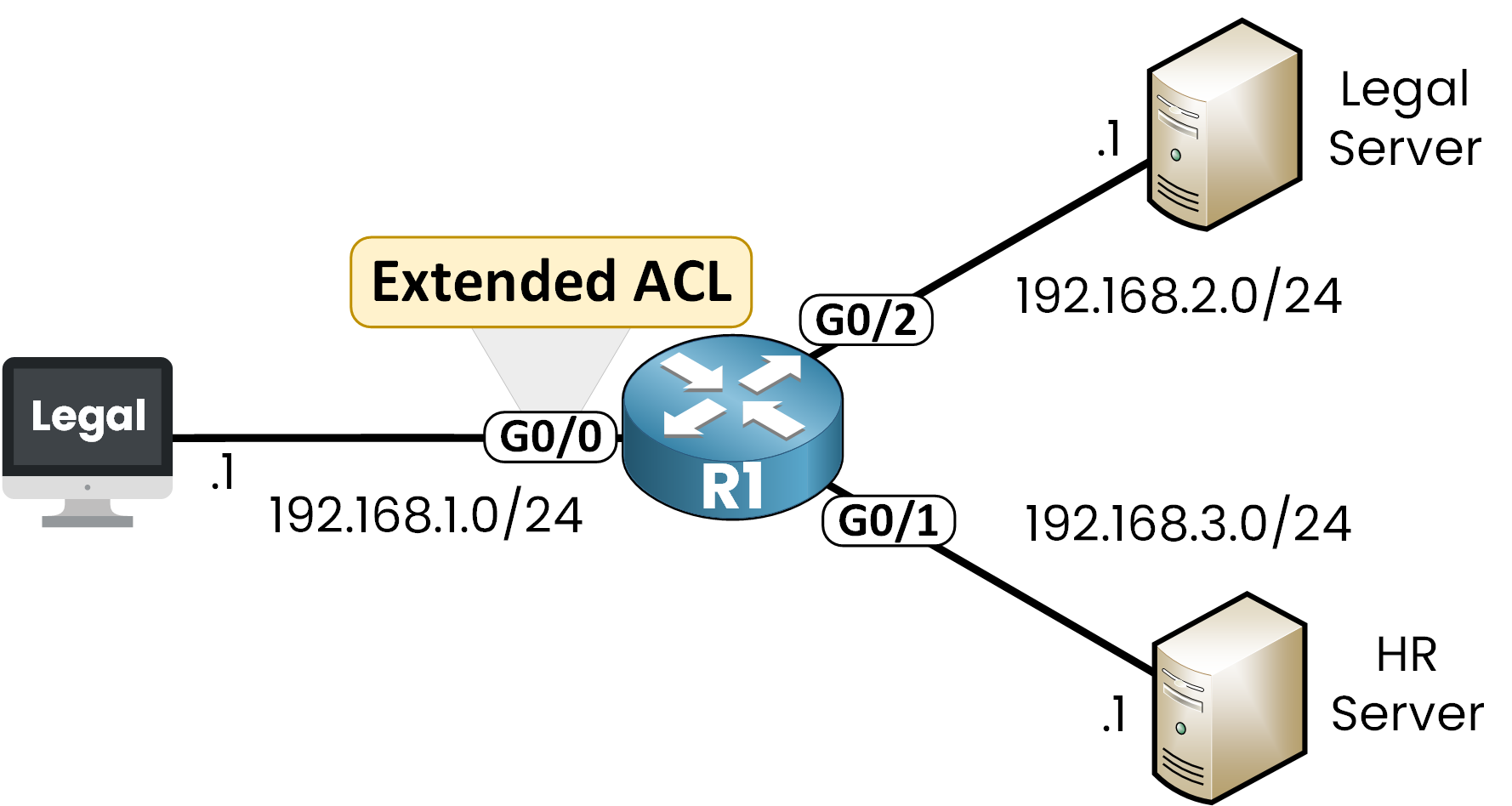
Figure 2 – Extended ACL Placement
The Legal PC sends traffic to router R1 through interface G0/0.
Applying the ACL to Interface
Step 1 – Enter interface configuration mode
R1# conf t
Enter configuration commands, one per line.  End with CNTL/Z.
R1(config)# int g0/0
Step 2 – Check available formats
Use the ip access-group command:
R1(config-if)# ip access-group ?
  <1-199>      IP access list (standard or extended)
  <1300-2699>  IP expanded access list (standard or extended)
  WORD         Access-list name
We'll use the ACL 101 that we created earlier.
Step 3 – Apply the ACL inbound
We apply ACL 101 to inspect packets coming from the source:
R1(config-if)# ip access-group 101 ?
  in   inbound packets
  out  outbound packets
R1(config-if)# ip access-group 101 in
R1(config-if)# end
This command activates ACL 101 on interface G0/0.
From now on, all inbound packets will be filtered according to your rules.Answer the question below
Extended ACLs should be placed as close as possible to what?
Once your ACL is applied, it's essential to confirm that:
The ACL contains the correct rules.
It is properly applied to the correct interface and in the right direction.
Step 1 – View the ACL Configuration
R1# show access-lists 101
Extended IP access list 101
    10 permit tcp host 192.168.1.1 host 192.168.2.1 eq 443
    20 deny   ip host 192.168.1.1 host 192.168.3.1
This confirms:
Line 10: Permits HTTPS traffic from 192.168.1.1 to 192.168.2.1
Line 20: Denies all traffic from 192.168.1.1 to 192.168.3.1
Step 2 – Confirm Interface Association
To verify that the ACL is correctly applied to an interface (in this case, G0/0):
R1# show ip interface g0/0
GigabitEthernet0/0 is up, line protocol is up
  Internet address is 192.168.1.254/24
  Broadcast address is 255.255.255.255
  Address determined by setup command
  MTU is 1500 bytes
  Helper address is not set
  Directed broadcast forwarding is disabled
  Multicast reserved groups joined: 224.0.0.10
  Outgoing access list is not set
  Inbound  access list is 101
  Proxy ARP is enabled
// OUTPUT OMITTED FOR BREVITY
This confirms that:
ACL 101 is applied to GigabitEthernet 0/0
It is used in the inbound direction, as expected.
Answer the question below
In which direction is ACL 101 applied on interface G0/0?
Here's what you need to remember about Standard vs. Extended ACLs before moving on:
Feature
Standard ACL
Extended ACL
Source IP filtering
Yes
Yes
Destination IP filtering
No
Yes
Protocol filtering
No
Yes (TCP, UDP, ICMP…)
Port filtering
No
Yes (for example 80 or 443)
Best placement
Close to the destination
Close to the source
Number range
1–99 / 1300–1999
100–199 / 2000–2699
Table 2 – Standard vs. Extended ACLs
💡 Do you want to use names instead of numbers for your ACLs?
Check out the next lesson on Named ACLs to make your configurations easier to manage.
Answer the question below
Click 'Complete' to continue