Imagine you just racked a new device and put it on the network. It is reachable.
The first thing you lock down is who can reach its command line, and what they can do once they are in.This is where device access control becomes interesting.
The Three Line Types
A Cisco device groups its CLI entry points into three line types.
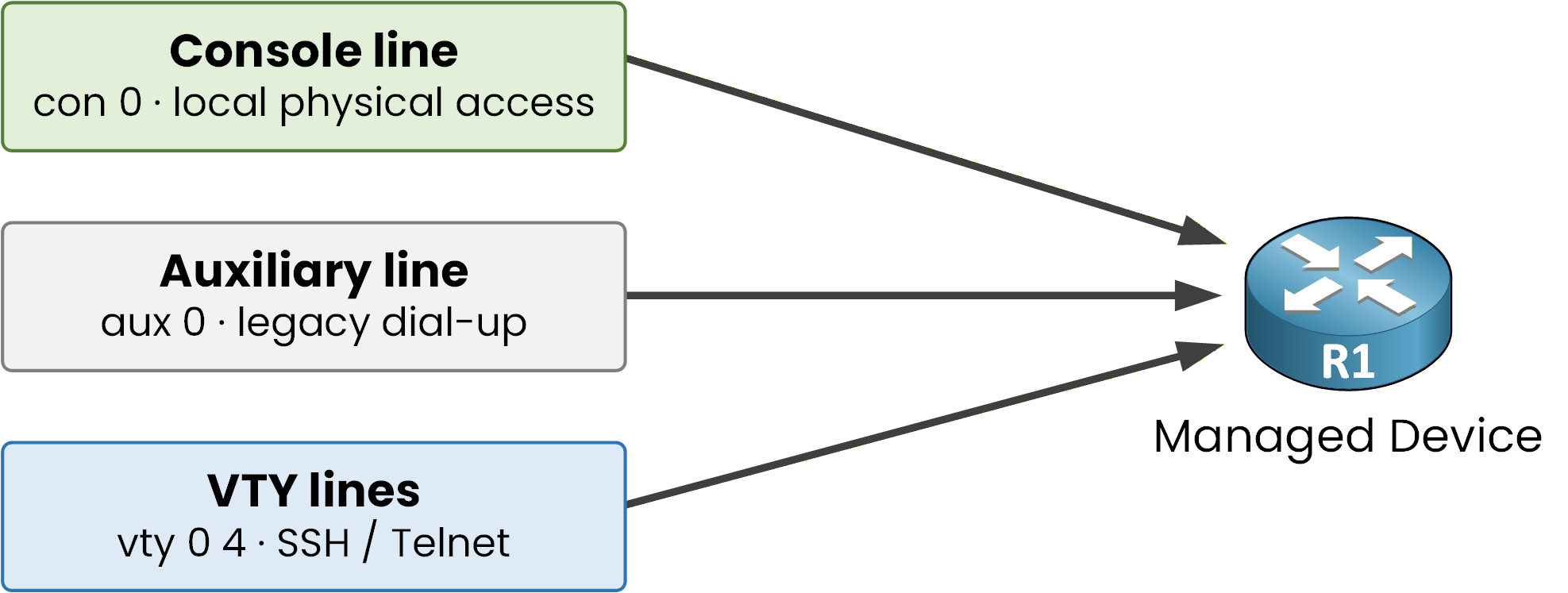
Figure 1 – Console, VTY, and aux lines all reach R1
You can see all three in the running configuration:
R1# show running-config | section line
line con 0
line aux 0
line vty 0 4
The console line (con 0) is the physical port you reach with a rollover cable.
It is your local, out-of-band entry, the one you use when the network is down.
The auxiliary line (aux 0) is a legacy modem port.
On modern networks it is rarely used, so you usually disable it.
The VTY lines (vty 0 4) are virtual terminals for remote access over the network.
You reach them through SSH or Telnet. Five lines (0 to 4) exist by default, and many platforms support up to 16 (0 to 15).
Answer the question below
Which line is the physical, out-of-band port?
Why Lines Matter
Each line is an independent entry point with its own configuration.
A line left unsecured is an open door: anyone who reaches it can gain CLI access!
So you secure each line on its own, deciding who may connect and how they authenticate.Answer the question below
Which line type is used for SSH and Telnet remote access?
Choosing the line decides who can connect. The password decides whether you can trust that connection.
Passwords are not all stored the same way. How a password is stored decides how easily it can be recovered.Password Types
Cisco IOS XE stores passwords in five types, from weakest to strongest:
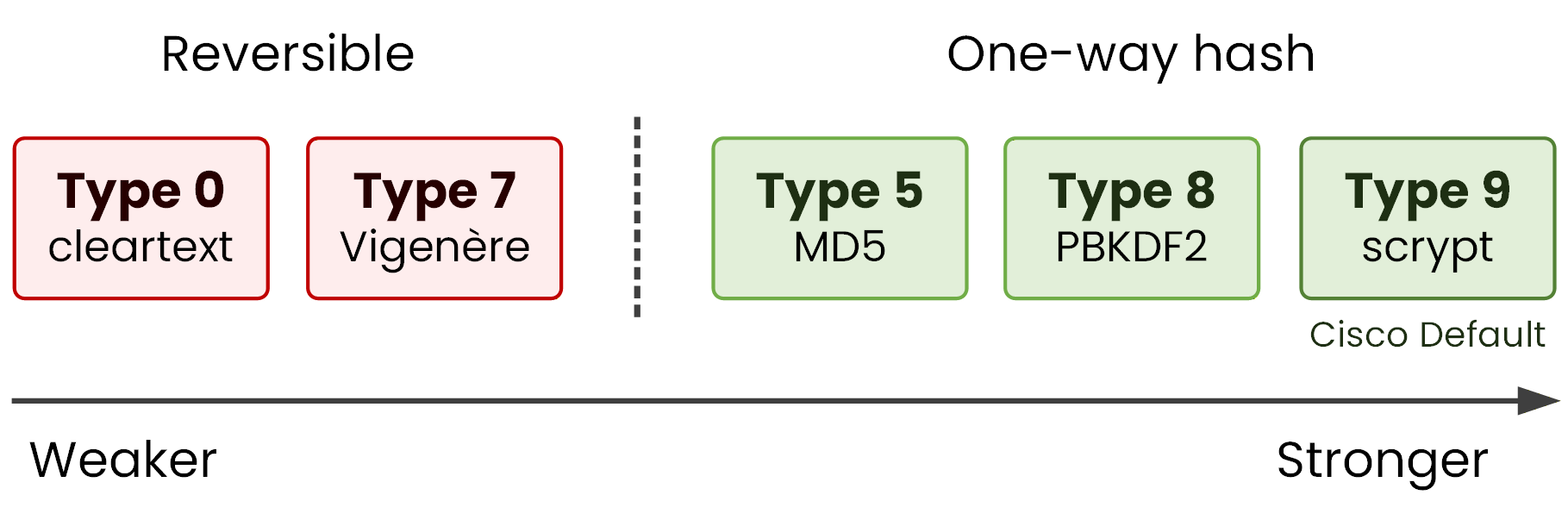
Figure 2 – Type 9 (scrypt) is the strongest storage
Type 0: cleartext, stored in plain view. Never use it.
Type 7: a reversible Vigenère cipher that online tools crack in under a second.
Type 5: a fast MD5 hash, so it can still be brute-forced.
Type 8: a slow PBKDF2 hash, very hard to crack.
Type 9: a slow, memory-hard scrypt hash, the hardest to crack and recommended by Cisco.
The service password-encryption command only upgrades Type 0 passwords to Type 7.
It hides them from a shoulder-surfer but gives no real protection.
Use enable secret for the Type 9 hash, never enable password, which stores Type 0.Answer the question below
Which password type does Cisco recommend?
Configuring Strong Passwords
Set the enable secret with the scrypt algorithm, then turn on encryption for any remaining legacy passwords:
R1# configure terminal
Enter configuration commands, one per line.  End with CNTL/Z.
R1(config)# enable algorithm-type scrypt secret Adm!nScrypt9
R1(config)# service password-encryption
R1(config)# end
The enable secret is now stored as a Type 9 hash.
You run service password-encryption right after as a safety net.
It does not touch the Type 9 secret. It only scrambles any older Type 0 passwords elsewhere in the config, and only into weak Type 7.Answer the question below
Which password type does the service password-encryption command apply?
A password on a line is shared by everyone who uses that line.
Instead, you give each administrator their own named account.
These accounts live in the device's local user database.login vs login local
There are two ways a line can check credentials.
The login command checks a single password configured on the line itself (Type 0, not recommended).
The login local command instead validates every connection against the local username database.
Username-based authentication is the recommended approach.
Configuring Local Users
First, create a hashed user with full privilege:
R1# configure terminal
R1(config)# username admin privilege 15 algorithm-type scrypt secret Adm!nScrypt9
That one line builds the account: admin is the username, privilege 15 gives it full access, and algorithm-type scrypt secret stores the password as a Type 9 hash.
40 % Complete: you’re making great progress
Ready to pass your CCNP exam?