Here you will learn what EEM (Embedded Event Manager) is.
EEM is a Cisco IOS feature that lets you automate tasks directly on a router.How EEM Works
The idea is simple:
An event happens (example: an interface goes down, a syslog message appears, a command is entered)
EEM reacts by executing one or more actions automatically
To understand this, look at the diagram below.
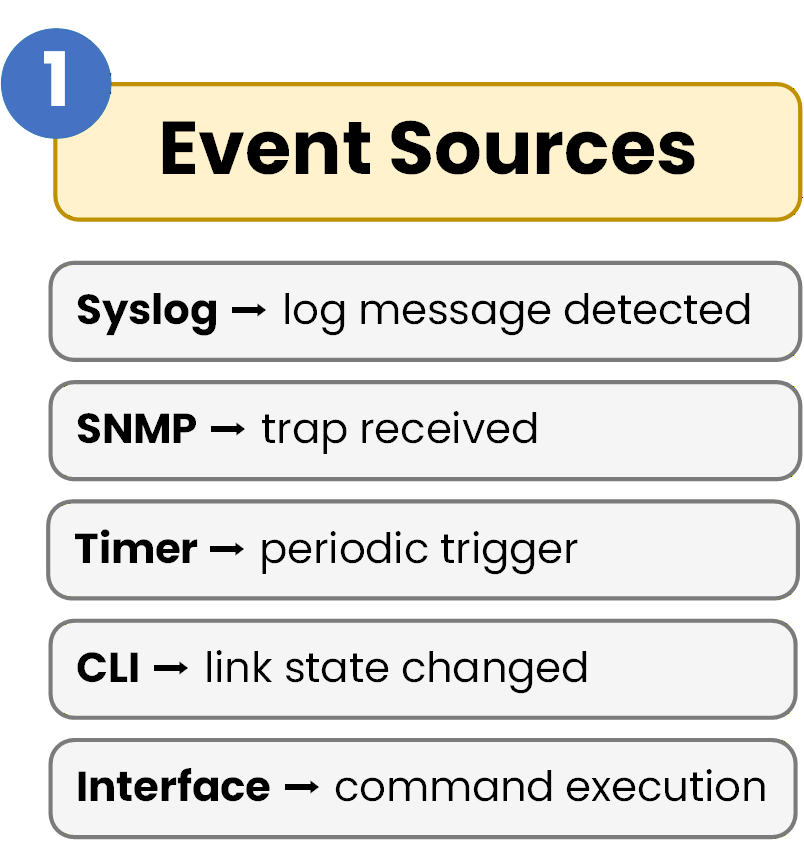
Figure 1 - Event Sources
1. Event Sources
Event Sources are the different “inputs” that EEM can monitor on the device.
In this figure, you can see common examples:Syslog: a log message is generated
SNMP: a trap is received
Timer: a scheduled trigger
CLI: a command is entered
Interface: a link/state change is detected
Answer the question below
Which component generates a log message that EEM can monitor?
2. EEM Engine
The EEM Engine is the component that receives these events and checks whether they match a condition you configured.
In other words: events arrive at the top, and the engine decides whether something should happen next.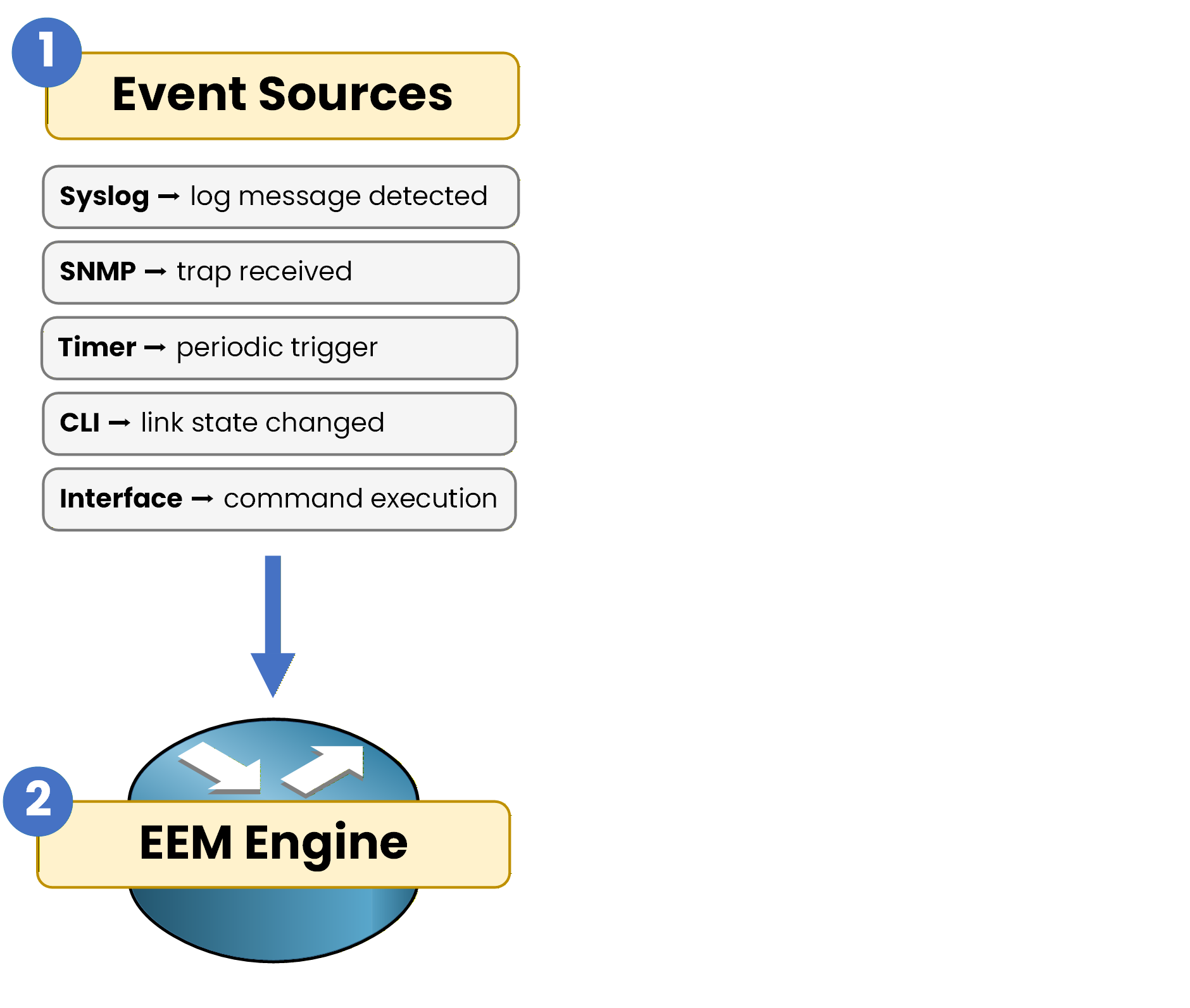
Figure 2 - EEM Engine
Answer the question below
Which component decides whether an event should trigger an action?
3. EEM Applets
Now let’s extend the workflow: when an event matches, EEM can launch an applet.
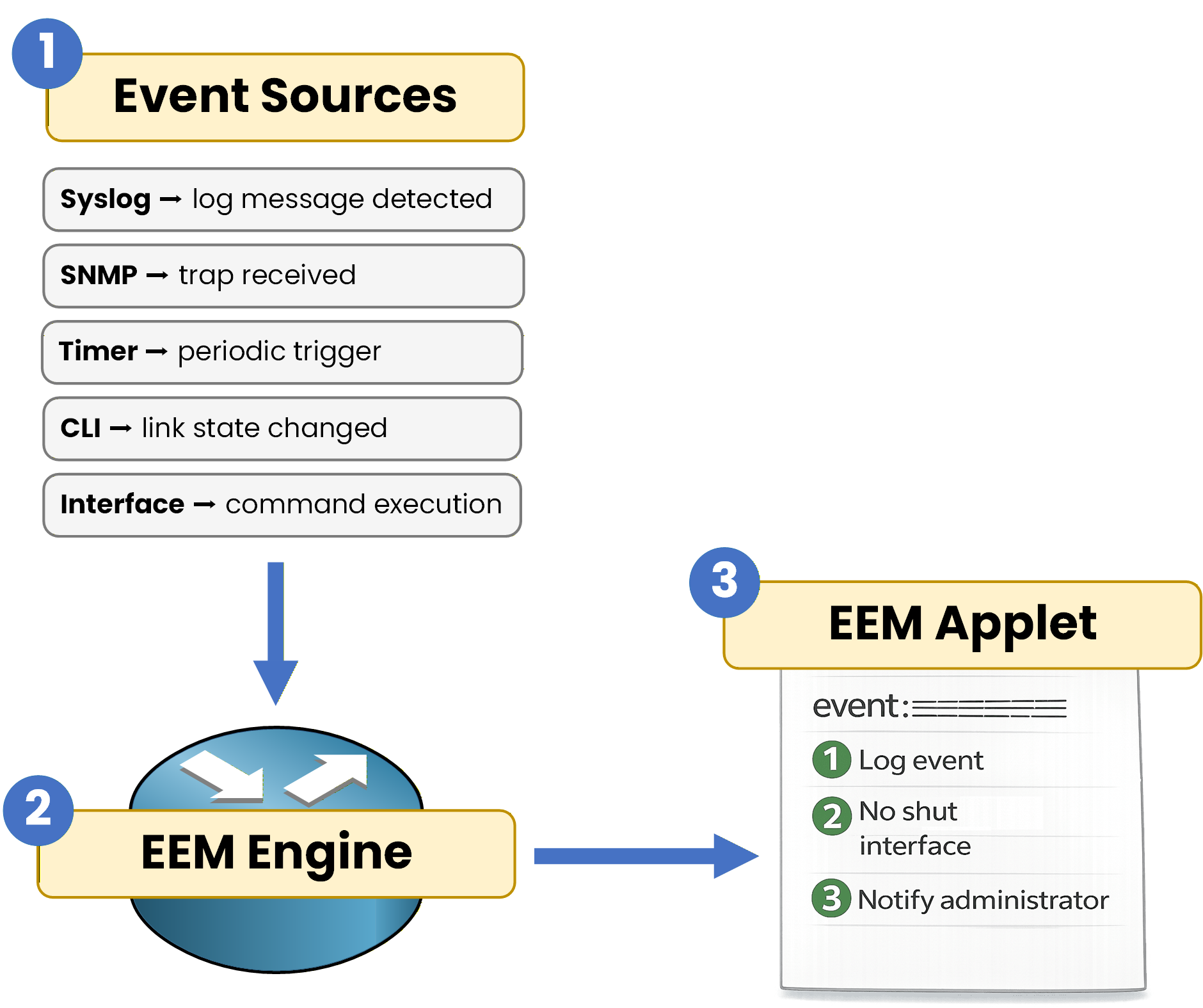
Figure 3 - EEM Applet
An EEM applet is a small IOS script that describes what to react to and what to do when it happens.
It contains:
an event: the trigger condition
actions: the list of tasks the device will execute
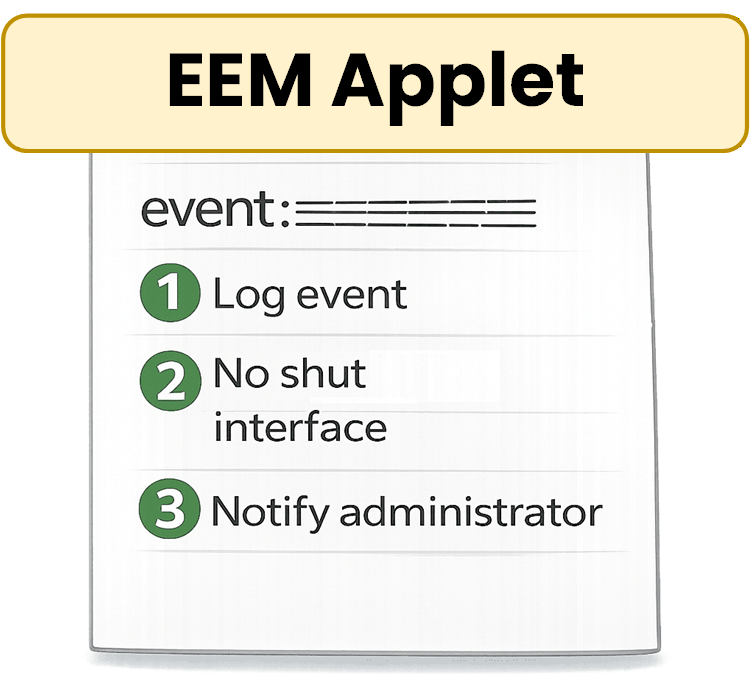
Figure 4 - EEM Applet details
If we summarize the full chain:
Event Sources: an event happens (example: syslog “interface down”)
EEM Engine: EEM detects it and checks for a match
EEM Applet: if there is a match, EEM runs the applet actions (the “script” executed automatically)
Answer the question below
What IOS feature contains the trigger and the list of actions to execute automatically?
Now that you understand how EEM works, it’s time to practice.
You will build 3 applets on R1, each one introducing a new concept:
reacting to a syslog event
adding a custom syslog message
triggering an applet manually
Applet 1 — Interface auto-recovery
In this applet, you will make sure that if interface Gi0/0 goes down, EEM detects the syslog message and automatically runs CLI commands to bring the interface back up.
First, you create the applet and give it a name. Here the applet name is
AUTO_RECOVERY:R1# conf t Enter configuration commands, one per line. End with CNTL/Z. R1(config)# event manager applet AUTO_RECOVERYRight after that, you define the event (the trigger).
This line tells EEM what to listen for in the syslog buffer:40 % Complete: you’re making great progress
Ready to pass your CCNP exam?