In this lab, you are going to configure eBGP between an Enterprise router and an ISP router.
This is a very common real-world scenario:
An enterprise connects its internal network to a service provider using BGP.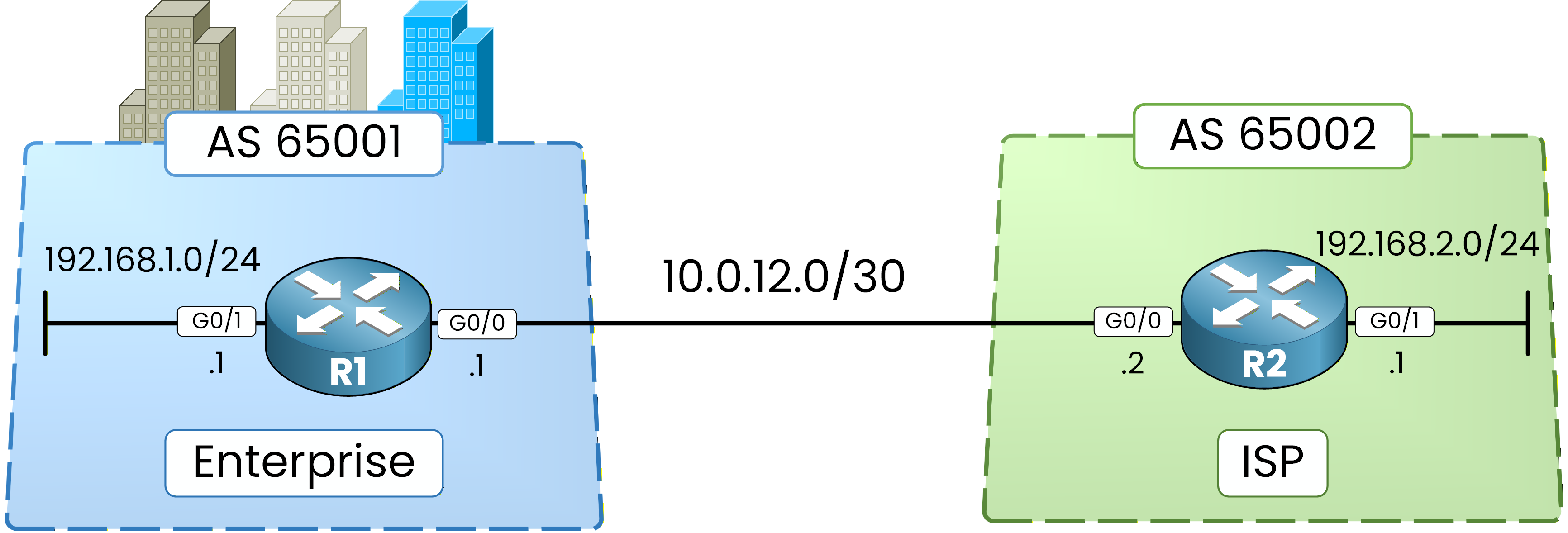
Figure 1 - Basic BGP Configuration Topology
In this topology:
R1 represents the Enterprise (AS 65001)
R2 represents the ISP (AS 65002)
The objective of this lab is simple:
Establish an eBGP session
Advertise local networks
Verify route exchange
Confirm connectivity
Let’s begin.
Step 1 – Interface Configuration
Before BGP can operate, the routers must be able to reach each other at Layer 3.
Start with R1:R1# conf t Enter configuration commands, one per line. End with CNTL/Z. R1(config)# int g0/0 R1(config-if)# ip address 10.0.12.1 255.255.255.252 R1(config-if)# no shut R1(config-if)# exit R1(config)# int g0/1 R1(config-if)# ip address 192.168.1.1 255.255.255.0 R1(config-if)# no shut R1(config-if)# exitHere you are doing two things:
Configuring the link toward the ISP (g0/0)
Configuring the Enterprise LAN (g0/1)
Now configure R2:
R2# conf t
Enter configuration commands, one per line.  End with CNTL/Z.
R2(config)# int g0/0
R2(config-if)# ip address 10.0.12.2 255.255.255.252
R2(config-if)# no shut
R2(config-if)# exit


R2(config)# int g0/1
R2(config-if)# ip address 192.168.2.1 255.255.255.0
R2(config-if)# no shut
R2(config-if)# exit
At this point:
Both routers have IP connectivity on the point-to-point link.
Each router has a local LAN network configured.
Now you are ready to activate BGP.
Step 2 – Configure eBGP Neighbors
You will now initialize BGP and define the neighbor relationship.
Start with R1:
R1(config)# router bgp 65001
R1(config-router)# neighbor 10.0.12.2 remote-as 65002
R1(config-router)# end
Here:
You declare that R1 belongs to AS 65001.
You define 10.0.12.2 as a neighbor in AS 65002.
Now configure R2:
R2(config)# router bgp 65002
R2(config-router)# neighbor 10.0.12.1 remote-as 65001
%BGP-5-ADJCHANGE: neighbor 10.0.12.1 Up
R2(config-router)# end
The message
%BGP-5-ADJCHANGE: neighbor 10.0.12.1 Upindicates that the BGP session has been successfully established.The two Autonomous Systems are now connected.
However, no routes have been exchanged yet.Step 3 – Verify BGP Session
Now verify the BGP session status.
At this stage, you have configured the neighbor relationship on both routers.
You must confirm that the session is properly established.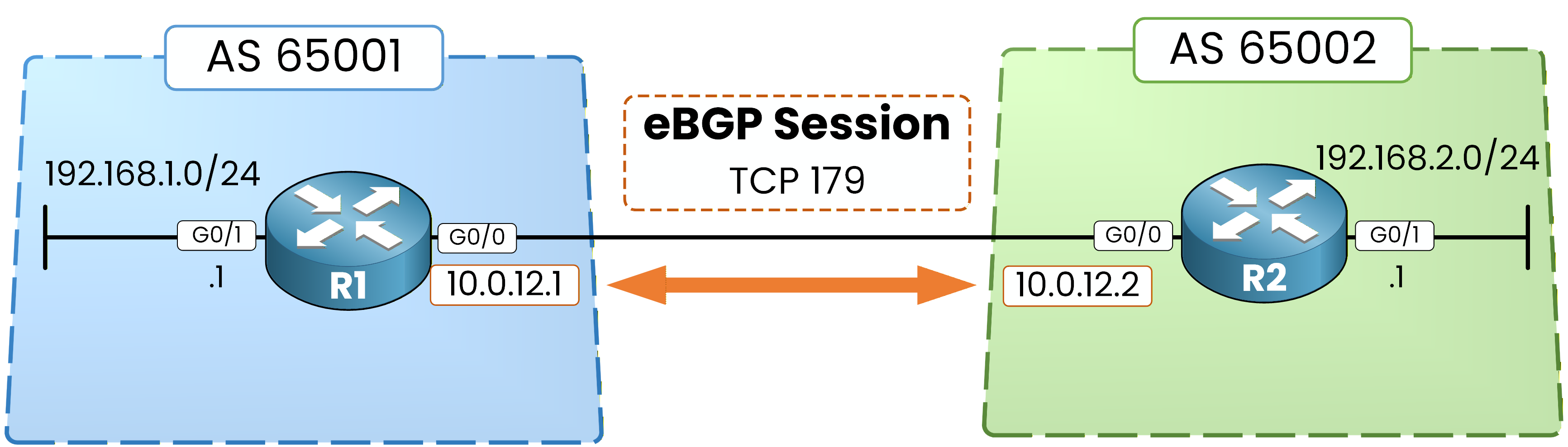
Figure 2 – eBGP Session over TCP 179
BGP sessions are always established over TCP using port 179.
Now check R1:R1# show bgp ipv4 unicast summary BGP router identifier 192.168.1.1, local AS number 65001 BGP table version is 1, main routing table version 1 Neighbor V AS MsgRcvd MsgSent TblVer InQ OutQ Up/Down State/PfxRcd 10.0.12.2 4 65002 29 29 1 0 0 00:00:30 0In this output, verify the following:
The Neighbor is 10.0.12.2 → this is R2.
The AS column shows 65002 → this confirms the remote Autonomous System.
The session shows counters increasing (MsgRcvd / MsgSent).
This confirms that R1 correctly sees its BGP neighbor and knows its remote AS.
Now check R2:
R2# show bgp ipv4 unicast summary
BGP router identifier 192.168.2.1, local AS number 65002
BGP table version is 1, main routing table version 1

Neighbor        V           AS MsgRcvd MsgSent   TblVer  InQ OutQ Up/Down  State/PfxRcd
10.0.12.1       4        65001      30      30        1    0    0 00:00:40        0
Again, confirm:
The Neighbor is 10.0.12.1 → this is R1.
The AS column shows 65001 → correct remote AS.
Message counters are active.
Finally, look at the
State/PfxRcdcolumn.
You see the value 0.This means:
The BGP session is Established (because it shows a number).
No prefixes have been received yet.
This is expected, since you have not advertised any networks at this point.
Answer the question below
Over which transport protocol does BGP establish its sessions?
The session is up but useless: neither router advertises anything yet.
In this section, you will check the empty BGP table, then feed it.Step 4 – Verify Initial BGP Table
Now check the BGP table itself.
On R1:40 % Complete: you’re making great progress
Ready to pass your CCNP exam?