To explain Policy-Based Routing (PBR), let’s start from what you already know.
A router normally makes forwarding decisions based on the destination IP address.
It uses the routing table to choose where to send the packet.PBR lets you override that process.
How PBR Works
PBR gives you control over how the router forwards specific traffic.
You match the traffic you care about, then you tell the router where to send it.A PBR policy is built with a route-map.
The route-map decides what traffic to process (MATCH) and what to do with it (SET).
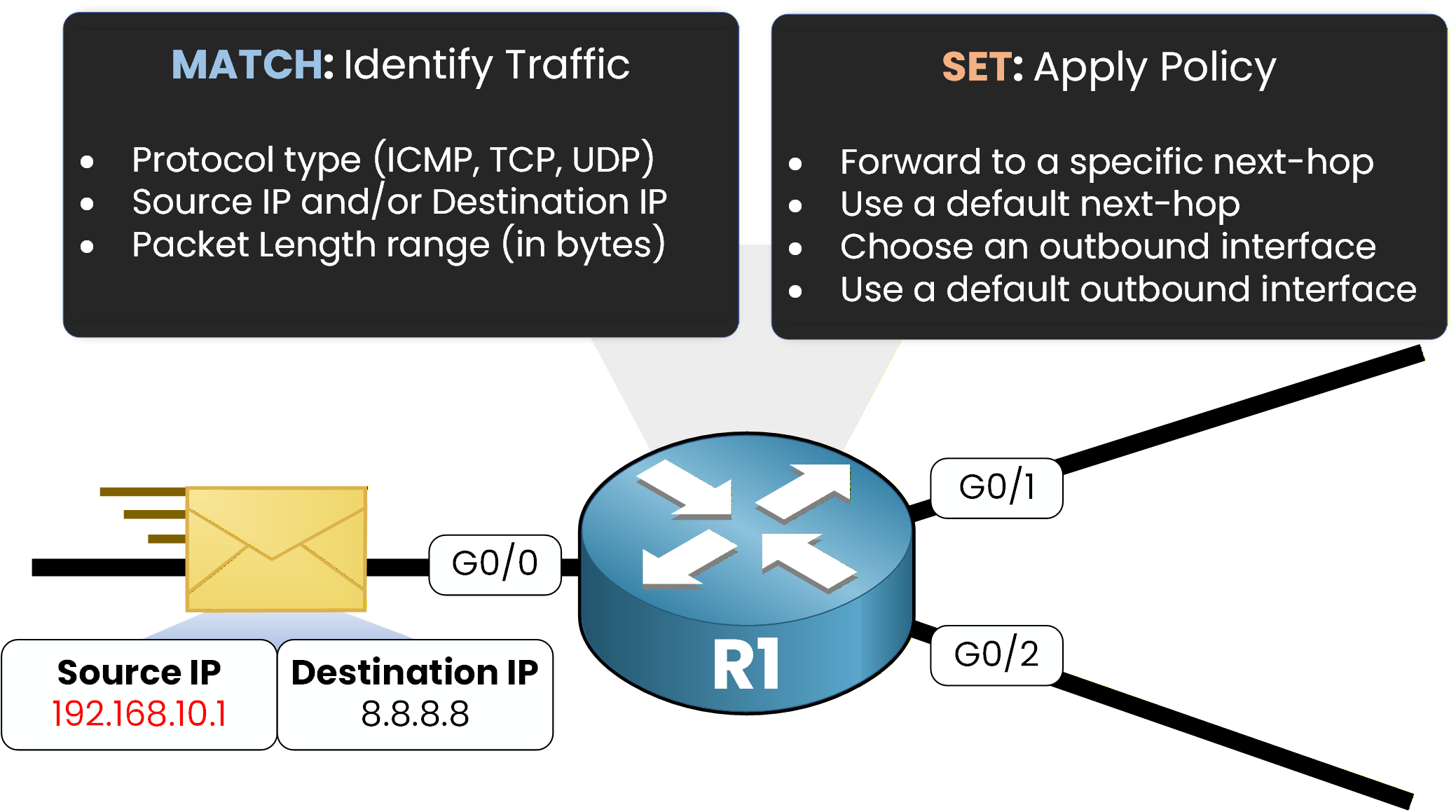
MATCH can identify traffic using different criteria, such as:
IP address (source, destination, or both)
protocol type (ICMP, TCP, UDP)
packet length range (in bytes)
SET defines the forwarding action for matched traffic, for example:
set a specific next-hop
set a default next-hop
set an outbound interface
set a default interface
PBR is evaluated when packets are received on an interface (inbound).
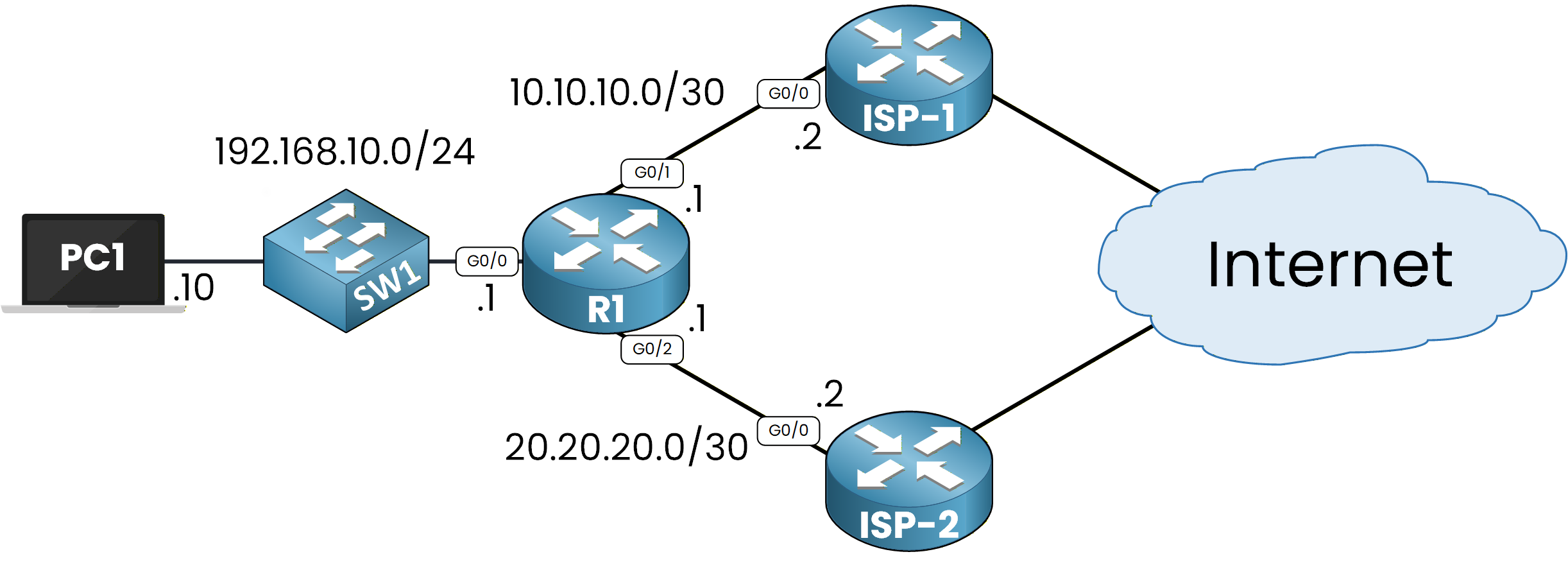
Figure 1 – Policy‑Based Routing Topology
To make this easy to understand, let’s walk through a simple example.
Practical Example
To understand PBR, let’s run a simple example.
Here, PC1 reaches the Internet through R1. R1 is connected to two ISP routers (ISP-1 and ISP-2).
Assume PC1 wants to communicate with 8.8.8.8.We can start with a
pingfrom PC1 to 8.8.8.8 to test traffic:C:\>ping 8.8.8.8 Pinging 8.8.8.8 with 32 bytes of data: Reply from 8.8.8.8: bytes=32 time=51ms TTL=126 Reply from 8.8.8.8: bytes=32 time=45ms TTL=126 Reply from 8.8.8.8: bytes=32 time=43ms TTL=126 Reply from 8.8.8.8: bytes=32 time=41ms TTL=126 Ping statistics for 8.8.8.8: Packets: Sent = 4, Received = 4, Lost = 0 (0% loss), Approximate round trip times in milli-seconds: Minimum = 41ms, Maximum = 51ms, Average = 45msThe ping works. Now we want to see the path the traffic takes.
We usetracertto display every hop on the way:C:\>tracert 8.8.8.8 Tracing route to 8.8.8.8 over a maximum of 30 hops: 1 2 ms 3 ms 2 ms 192.168.10.1 2 4 ms 5 ms 4 ms 10.10.10.2 3 6 ms 7 ms 6 ms 8.8.8.8 Trace complete.We can see the first hop is 192.168.10.1, then 10.10.10.2, then 8.8.8.8.
This confirms that R1 forwards traffic through ISP-1, using next-hop 10.10.10.2.As shown in Figure 2, traffic goes through ISP-1 when PBR is not applied.
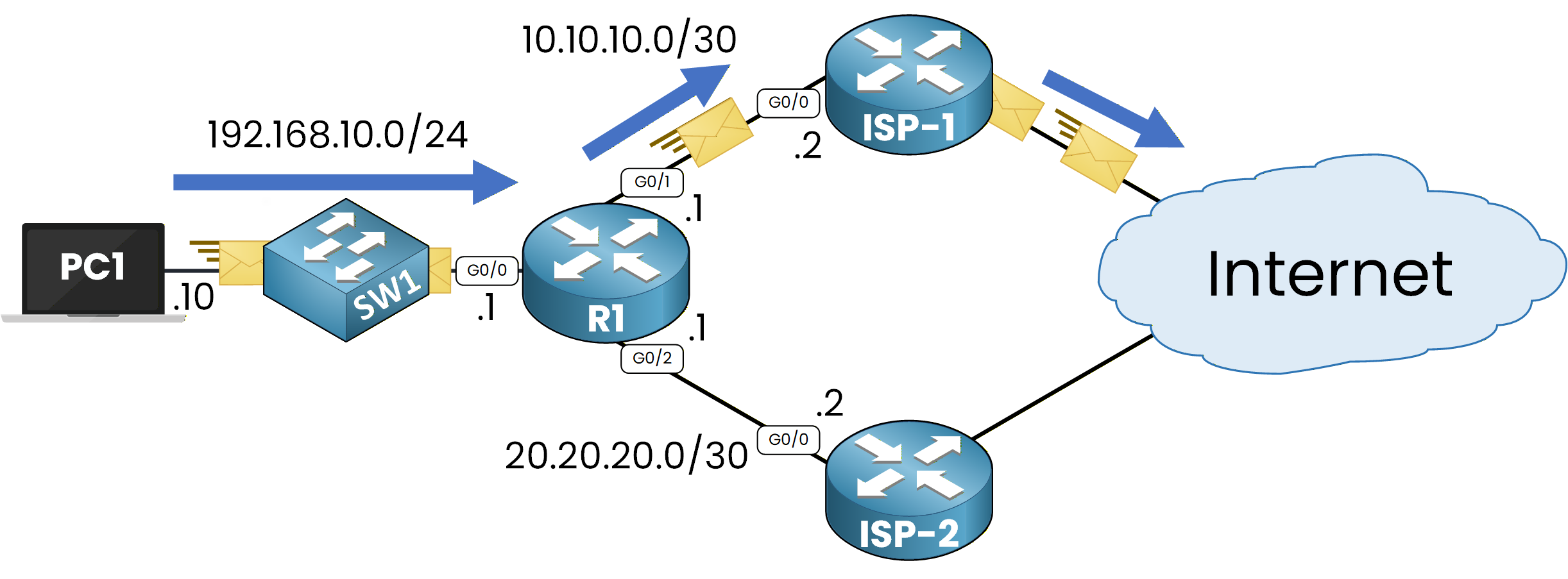
Figure 2 – Traffic Path Without Policy‑Based Routing
Why Traffic Uses ISP-1
On R1, we can check the static route configured to point to ISP-1:
R1# show ip route static
Codes: L - local, C - connected, S - static, R - RIP, M - mobile, B - BGP
       D - EIGRP, EX - EIGRP external, O - OSPF, IA - OSPF inter area
       N1 - OSPF NSSA external type 1, N2 - OSPF NSSA external type 2
       E1 - OSPF external type 1, E2 - OSPF external type 2
       i - IS-IS, su - IS-IS summary, L1 - IS-IS level-1, L2 - IS-IS level-2
       ia - IS-IS inter area, * - candidate default, U - per-user static route
       o - ODR, P - periodic downloaded static route, H - NHRP, l - LISP
       a - application route
       + - replicated route, % - next hop override, p - overrides from PfR

Gateway of last resort is not set

     8.0.0.0/24 is subnetted, 1 subnets
S       8.8.8.0 [1/0] via 10.10.10.2
This shows R1 uses next-hop 10.10.10.2 when the destination is in 8.8.8.0/24.
That explains why the trace shows the ISP-1 path.Now comes the key point.
PBR allows us to manually influence routing without changing the routing table.On R1, we can apply a policy so that traffic from PC1 goes through ISP-2 instead of ISP-1.
As shown in Figure 3, PBR is applied on R1 on the incoming interface.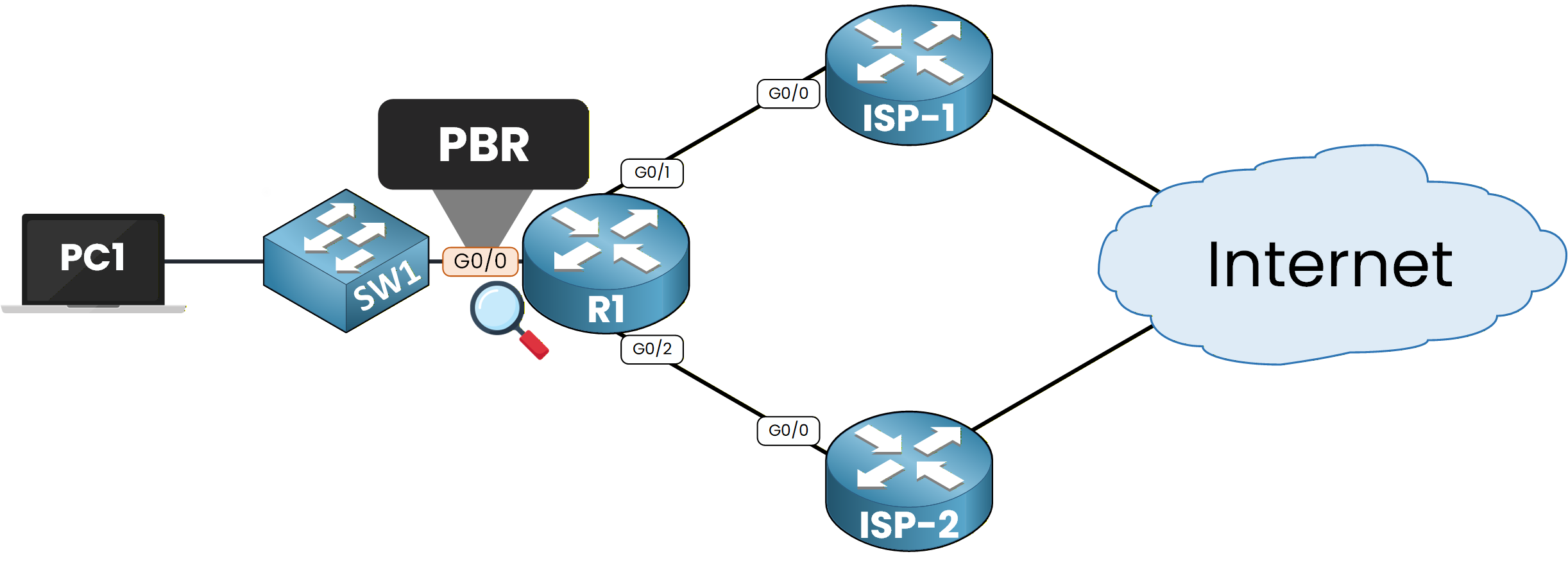
Figure 3 – PBR is applied to the R1 incoming interface.
This looks complex? Not at all.
Let’s move to the next step, you’ll configure it yourself.Answer the question below
What feature lets you override normal destination‑based routing and control how traffic is forwarded manually?
With PBR, we can influence routing decisions in three clear steps.
We will apply a policy so that PC1 traffic uses ISP-2.Figure 4 – Policy‑Based Routing Topology
Step 1 - Identify the Traffic
The first step is to identify the traffic we want to manipulate.
In this case, we want traffic coming from the 192.168.10.0/24 network going to any destination.We can match this traffic using an extended ACL:
R1# conf t
Enter configuration commands, one per line.  End with CNTL/Z.
R1(config)# access-list 100 permit ip 192.168.10.0 0.0.0.255 any
Step 2 - Create the Route-Map
Now we create a route-map that defines the forwarding policy.
The route-map matches ACL 100 and sets a new next-hop.R1(config)# route-map CLIENTS-TO-INTERNET permit 10 R1(config-route-map)# match ip address 100 R1(config-route-map)# set ip next-hop 20.20.20.2 R1(config-route-map)# exitPBR only uses the configured next-hop if it exists in the RIB.
If the next-hop is missing, the router will not apply the policy for that traffic.Step 3 - Apply the Route-Map
For PBR to work, the route-map must be applied on the incoming interface.
In this lab, traffic arrives on GigabitEthernet0/0, so we apply the policy there.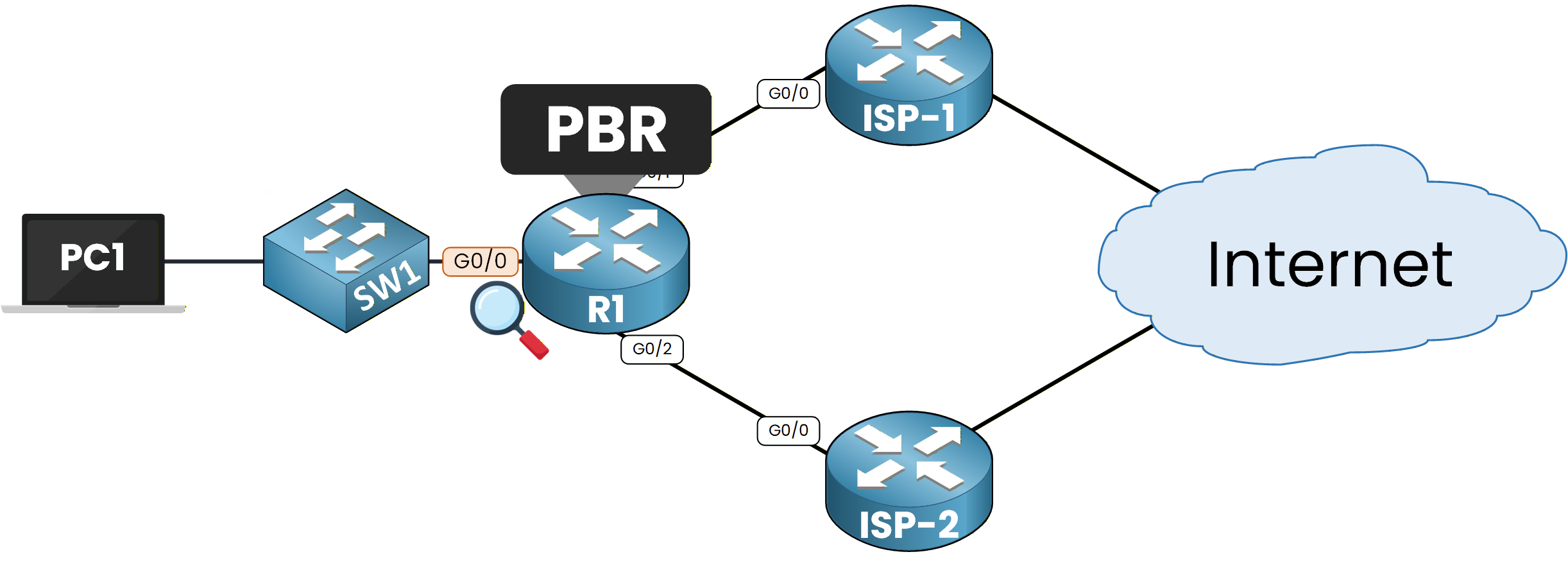
Figure 5 - PBR is applied on G0/0
R1(config)# interface g0/0
R1(config-if)# ip policy route-map CLIENTS-TO-INTERNET
R1(config-if)# end
%SYS-5-CONFIG_I: Configured from console by console
Test Connectivity
Now we can test again from PC1 to 8.8.8.8.
C:\>ping 8.8.8.8
Pinging 8.8.8.8 with 32 bytes of data:

Reply from 8.8.8.8: bytes=32 time=48ms TTL=126
Reply from 8.8.8.8: bytes=32 time=44ms TTL=126
Reply from 8.8.8.8: bytes=32 time=43ms TTL=126
Reply from 8.8.8.8: bytes=32 time=42ms TTL=126

Ping statistics for 8.8.8.8:
    Packets: Sent = 4, Received = 4, Lost = 0 (0% loss),
Approximate round trip times in milli-seconds:
    Minimum = 42ms, Maximum = 48ms, Average = 44ms
Ping is still successful!
C:\>tracert 8.8.8.8
Tracing route to 8.8.8.8
over a maximum of 30 hops:

 1     2 ms     3 ms     2 ms  192.168.10.1
 2     4 ms     5 ms     4 ms  20.20.20.2
 3     6 ms     7 ms     6 ms  8.8.8.8

Trace complete.
The trace now shows the traffic going through ISP-2 (next-hop 20.20.20.2):
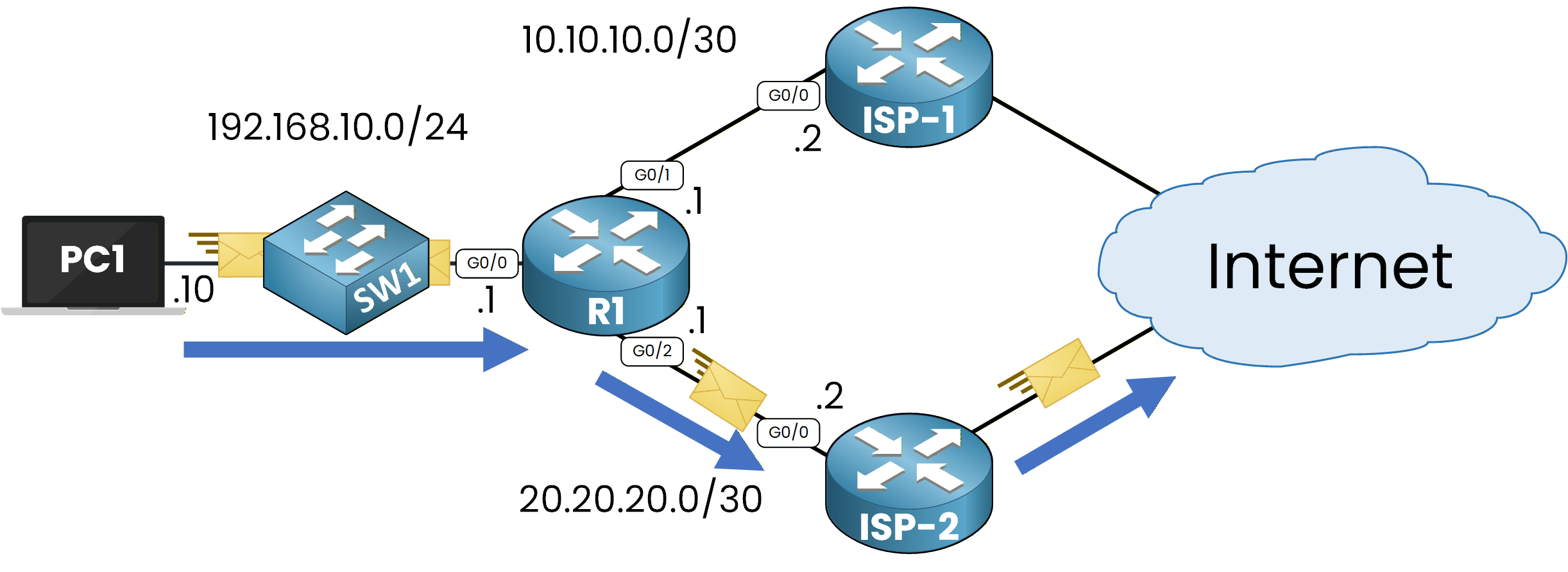
Figure 6 – Traffic Path With Policy‑Based Routing Enabled
As shown in Figure 6, the traffic path changes when PBR is enabled.
Answer the question below
What command do you use to apply a route‑map to an incoming interface so that PBR can take effect?
We can verify PBR using
show route-mapto check the status of our route-map.Verify Route Map
This command confirms what the route-map matches and what action it applies.
It also shows counters, which help you confirm that traffic is actually hitting the policy.R1# show route-map route-map CLIENTS-TO-INTERNET, permit, sequence 10 Match clauses: ip address (access-lists): 100 Set clauses: ip next-hop 20.20.20.2 Policy routing matches: 9 packets, 540 bytesHere, you can see the match clause uses ACL 100, and the set clause forces next-hop 20.20.20.2.
At the bottom, the counters show how many packets were processed by the route-map.
In this example, 9 packets matched and were policy-routed.Keep in mind that PBR does not change the routing table (RIB).
That’s whyshow ip routewill still display the normal next-hop, even if PBR forwards the traffic differently.Verify Policy
The
show ip policycommand shows which interface has a route-map applied:R1# show ip policy Interface Route map Gi0/0 CLIENTS-TO-INTERNETThis step is important.
If the route-map is not applied on the incoming interface, PBR will not take effect.Answer the question below
Is PBR applied on the inbound or outbound interface?