When working with Cisco routers or switches, it's essential to understand how the device stores and applies its configuration.
Each Cisco device maintains two versions of its configuration:The running configuration is stored in RAM. This is volatile memory, meaning all changes are lost when the device reboots.
The startup configuration is stored in NVRAM, a persistent memory that survives restarts and is automatically loaded at boot.
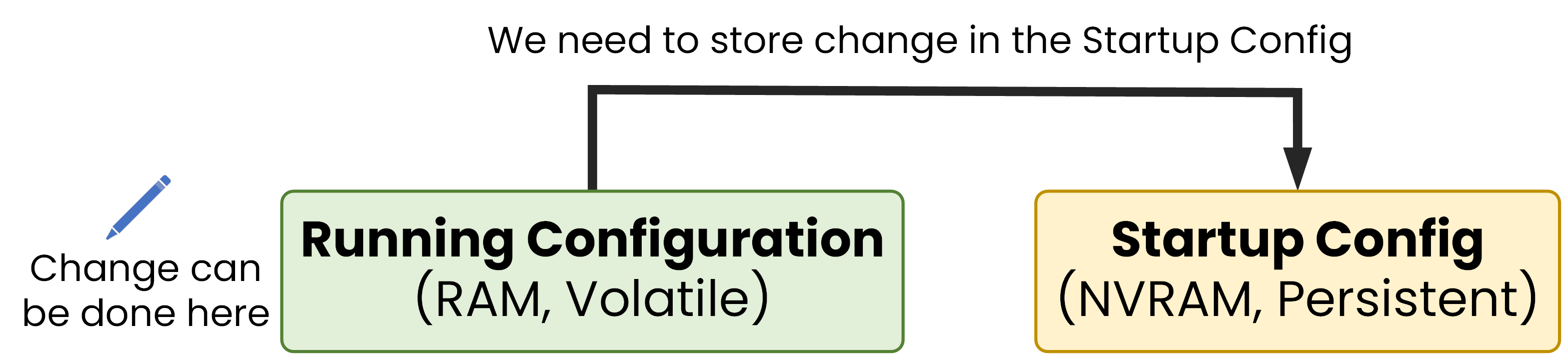
Figure 1 – Save running config to startup config to keep changes after reboot
This distinction is crucial. If you make changes to the configuration during a session, you're actually modifying the running configuration. But unless you save those changes, they'll be lost as soon as the device reboots.
To ensure your changes are kept permanently, you must manually save the running configuration into the startup configuration.
Answer the question below
Which configuration is stored in RAM and lost when the device reboots?
Let's walk through what happens from the moment the device powers on.
When the router or switch boots up, it begins by loading the startup configuration from NVRAM.
This configuration is copied into RAM and becomes the running configuration, which the system uses to operate in real time.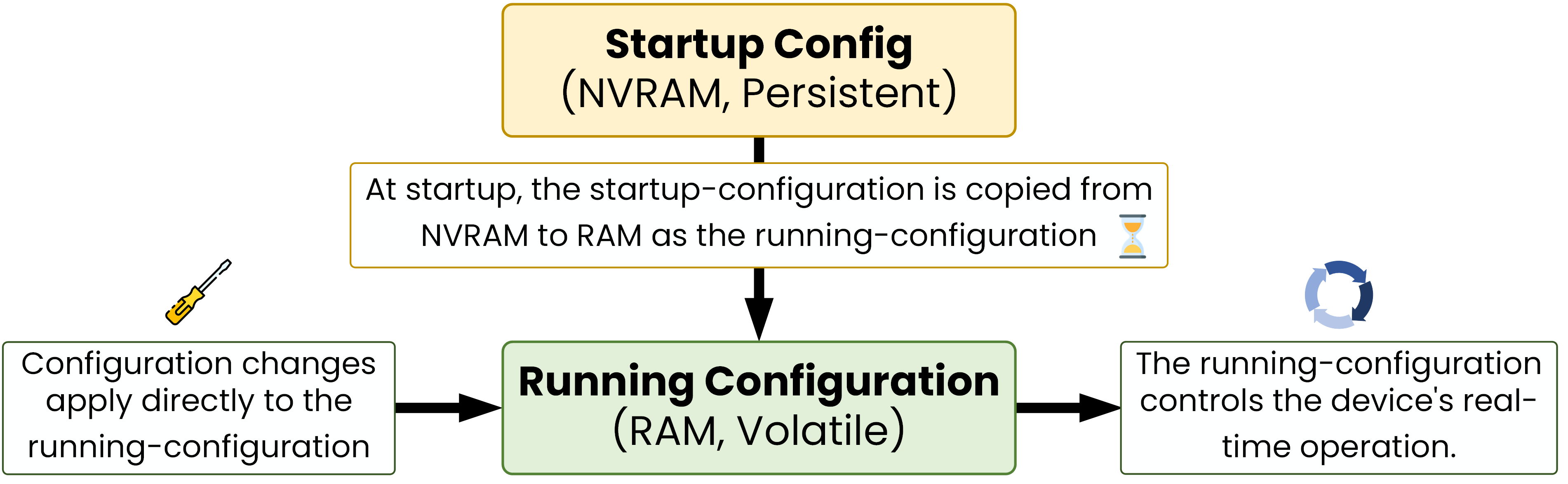
Figure 2 – At startup, the startup config is loaded into RAM as the running config
So the process works like this:
The startup configuration defines how the device boots
The running configuration reflects the current live state
Any configuration changes apply to the running config
If you want those changes to persist after a reboot, you must manually save them with:
copy running-config startup-config
This flow is key to understanding how configuration behaves on Cisco devices:
On reboot → the startup config is copied into the running config
When saving → the running config must be copied into the startup config
Answer the question below
Which config is copied into RAM at device boot?
To check what configuration is currently active, use:
SW1# show running-config
hostname SW1
!
interface GigabitEthernet0/1
 negotiation auto
!
spanning-tree mode pvst
!
ip ssh version 2
!
line vty 0 4
 login
!
end
This displays everything currently stored in RAM, the live configuration used by the device.
Now let's modify a setting. For example, configure the STP priority:
SW1# conf t
Enter configuration commands, one per line. End with CNTL/Z.
SW1(config)# spanning-tree vlan 1 priority 24576
SW1(config)# end
➤ The change is active immediately in RAM but is not yet saved.
This change is immediately applied, but only in RAM. It will be lost if the device reboots.
Verify that the command is now in the running config:
SW1# show running-config
hostname SW1
!
interface GigabitEthernet0/1
 negotiation auto
!
spanning-tree mode pvst
spanning-tree vlan 1 priority 24576
!
ip ssh version 2
!
line vty 0 4
 login
!
end
The spanning-tree vlan 1 priority 24576 command is now active, but not saved in the startup config!
Let's now check what's stored in the startup config:
SW1# show startup-config
hostname SW1
!
interface GigabitEthernet0/1
 negotiation auto
!
spanning-tree mode pvst
!
ip ssh version 2
!
line vty 0 4
 login
!
end
If the command isn't there yet, it means the change hasn't been saved to NVRAM.
Answer the question below
Which command shows the active configuration stored in RAM?
To make your changes permanent, copy the running configuration to the startup configuration:
SW1# copy running-config startup-config Destination filename [startup-config]? startup-config Building configuration... Compressed configuration from 2967 bytes to 1407 bytes[OK] *Dec 4 17:55:02.875: %GRUB-5-CONFIG_WRITING: GRUB configuration is bein g updated on disk. Please wait...** *Dec 4 17:55:03.698: %GRUB-5-CONFIG_WRITTEN: GRUB configuration was wri * tten to disk successfully..png)
Figure 3 – Saving running configuration to startup config for persistence
Once saved, the configuration is written to NVRAM and will survive a reboot.
You can also use this shorter legacy command:
Router# write memory
Building configuration...
[OK]
Both commands achieve the same goal:
copy running-config startup-config: explicitly defines what to copy and where.
write memory: shorter form, still valid today.
SW1# show startup-config
hostname SW1
!
interface GigabitEthernet0/1
 negotiation auto
!
spanning-tree mode pvst
spanning-tree vlan 1 priority 24576
!
ip ssh version 2
!
line vty 0 4
 login
!
end
You should now see the STP priority line included, meaning it's safely stored and will persist after a reboot.
Answer the question below
Which command saves the running configuration so it stays after a reboot?
Understanding the difference between the running and startup configuration is critical when working with Cisco devices.
The running config is stored in RAM. It's active immediately but lost after a reboot.
The startup config is stored in NVRAM. It's persistent and automatically loaded at boot.
If you don't save your work, your changes will be lost.
To avoid unexpected issues and ensure the device always boots with the correct settings, remember to save your configuration after every change:
copy running-config startup-configOr, if you prefer the short version:
write memoryGetting into the habit of saving your configuration is one of the most important best practices in network administration.
Answer the question below
Where is the startup configuration stored?