You've already been using the Cisco CLI in previous lessons.
Now it's time to understand exactly what you've been doing and master it.
Figure 1 - Cisco CLI Practice
When you are ready, mark this step as complete.
Answer the question below
Click 'Complete' to continue
To use the Cisco CLI correctly, there is one important thing to understand:
Cisco organizes the CLI into different modes.Each mode has a specific role.
Each mode allows specific actions.User EXEC Mode
This is the default mode.
When you open the CLI, you start here.SW1>In this mode:
you can check basic information,
you cannot change the configuration.
This is a read-only mode.
From here, you can move to a higher mode.
Privileged EXEC Mode
To enter this mode, type the
enablecommand:SW1> enable SW1#This mode allows you to:
check important information about the device,
verify the current configuration,
restart or troubleshoot the device,
save the configuration.
As a network administrator, this mode is important.
You will use it often to verify that everything is working correctly.Global Configuration Mode
Now, you want to configure the device.
To do this, you'll enter the Global Configuration Mode.
By using theconfigure terminalcommand:SW1# configure terminal Enter configuration commands, one per line. SW1(config)#This is where all major configurations start.
In the previous lessons, you already entered this mode, even if you did not realize it at the time.Now, let's activate a switch interface.
To do this, you'll use a sub-configuration mode.Sub-Configuration Modes
From global configuration mode, you can enter sub-configuration modes by using the appropriate command.
For example, use theinterface fastEthernet0/1command.SW1(config)# interface fastEthernet0/1 SW1(config-if)# → interface configurationYou are now in the interface configuration mode for fastEthernet0/1.
In this mode, you can configure the interface as needed.Activating the Interface
To activate the interface, use the
no shutdowncommand:SW1(config-if)# no shutdown %LINK-5-CHANGED: Interface FastEthernet0/1, changed state to up %LINEPROTO-5-UPDOWN: Line protocol on Interface FastEthernet0/1, changed state to up SW1(config-if)#This output means that the interface
FastEthernet0/1is now active.
Great job!How to Move Between Cisco IOS Modes
Cisco IOS uses commands to move between modes.
The image below shows how the different modes are connected.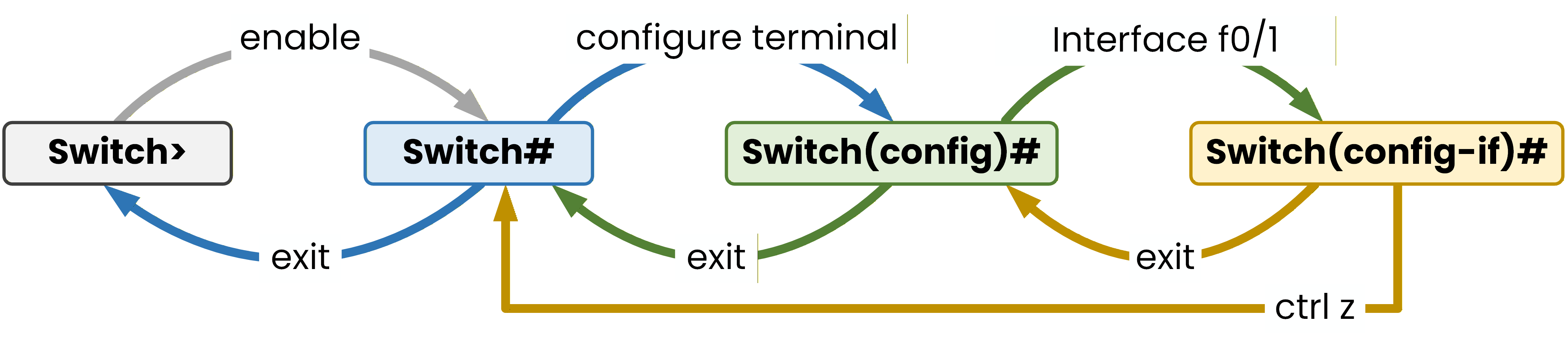
Figure 2 - Move between Cisco IOS Modes
How to Move Back Between Cisco IOS Modes
You are currently in SW1(config-if)#
To go back to the SW1# prompt, use theexitcommand.SW1(config-if)# exit SW1(config)# exit %SYS-5-CONFIG_I: Configured from console by console SW1#Each
exitcommand moves you back one mode at a time.When you leave Global Configuration Mode, the switch displays a message in the CLI to confirm the change.
Always look at the prompt to know where you are.Answer the question below
Which command moves you back one mode at a time?
Now that you have learned how to navigate the command line interface (CLI),
I should mention that Cisco devices do not automatically save your work.Cisco uses two configuration files within the network device, with each file stored in a different memory area.
.png)
Figure 3 - Startup Config vs. Running Config
Startup Configuration (NVRAM)
This is the configuration that loads every time the device boots.
It is persistent.
It lives in NVRAM.
It doesn't change unless you save manually.
Running Configuration (RAM)
This is the configuration currently active on the device.
It is stored in RAM.
Every command you type affects the running-config.
It disappears when the device reboots unless you save it.
Let's look at the current configuration of the switch with
show running-config.
Don't try to read everything. Focus on the highlighted parts.You can see it again here, with the most important lines highlighted:
SW1# show running-config
Building configuration...

Current configuration : 1080 bytes
!
version 15.0
no service password-encryption
!
hostname SW1
!
spanning-tree mode pvst
!
interface FastEthernet0/1
!
interface GigabitEthernet0/1
!
interface Vlan1
 no ip address
 shutdown
!
line con 0
!
line vty 0 4
 login
!
end
The hostname, the interfaces and the Vlan1 are the parts you'll touch most often.
Saving Your Configuration
In order to save your changes, you must manually copy the 'running-config' to the 'startup-config' using the following command:
SW1# copy running-config startup-config
Destination filename [startup-config]?
Building configuration...
[OK]
Or you can also use this command:
SW1# write memory
Building configuration...
[OK]
If you forget this step, all your work is lost after a reboot, a very common mistake for beginners.
Configuring a switch is one thing. Understanding the network it lives inside is another.
Answer the question below
The running configuration is stored in ___.