Imagine if you had to manually set an IP address, subnet mask, gateway, and DNS servers on your computer every time you joined a network. It would quickly become tedious and prone to mistakes.

Figure 1 – DHCP client requesting IP configuration from the DHCP server.
DHCP (Dynamic Host Configuration Protocol) is a network protocol that solves this issue by automatically assigning all necessary network settings. This means you can connect to a network and start communicating immediately without manual input.
What does DHCP provide?
When your device connects to a network, DHCP typically assigns:
An IP address: Identifies your device on the network
A subnet mask: Defines the local network range
A default gateway: Allows communication with external networks, including the internet
DNS servers: Resolves domain names like google.com into IP addresses
This automatic process ensures that devices such as computers, smartphones, and printers are correctly configured without human intervention.
Answer the question below
DHCP prevents the need for what type of IP configuration?
Understanding DHCP in Action
When your device (the DHCP client) connects to a network, it sends out a request to find a DHCP server, which is usually your router or a dedicated server in larger networks.
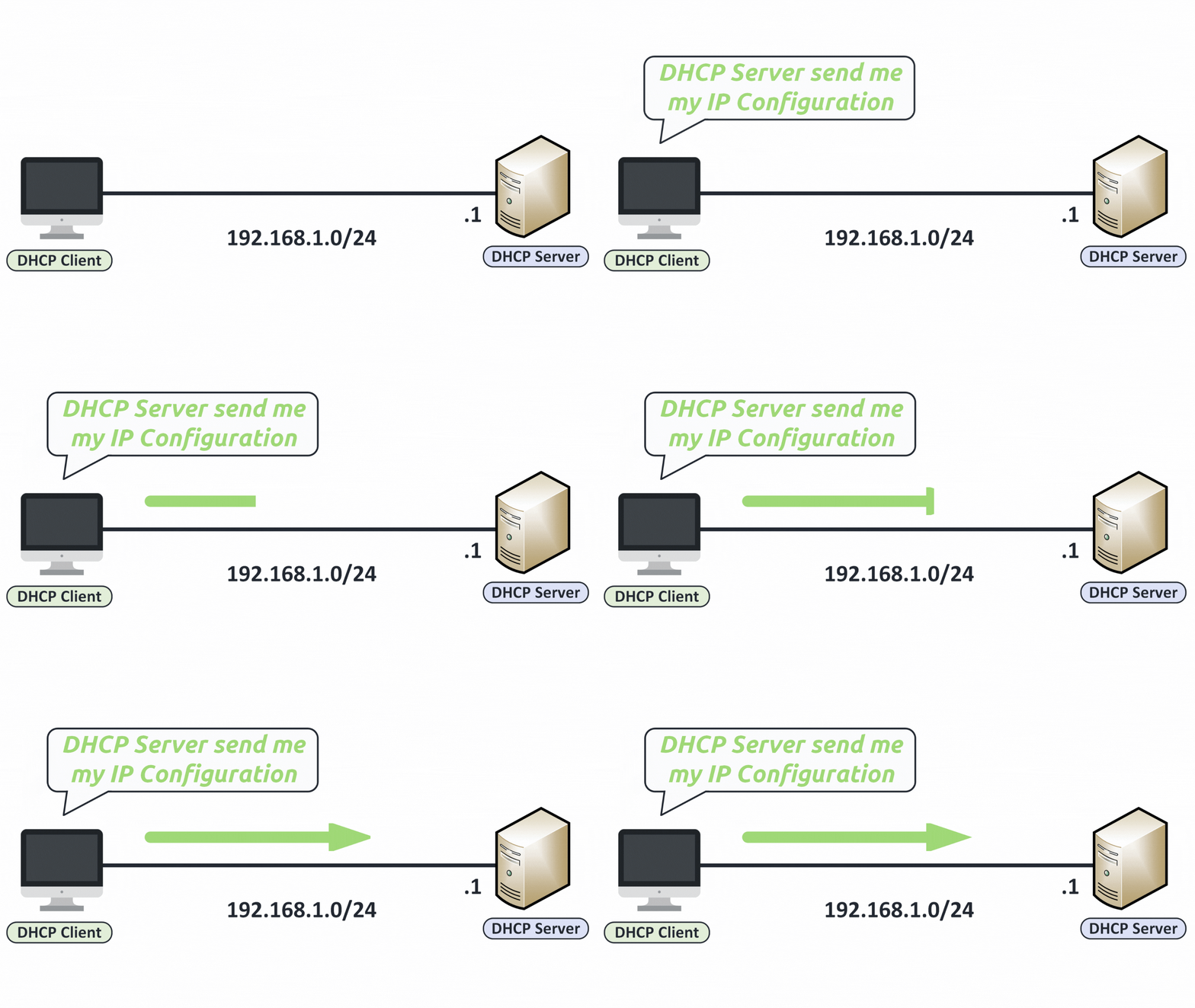
Figure 2 – DHCP client requesting IP configuration from the DHCP server.
The server responds by assigning all the necessary IP settings for a specific time period, called a lease.
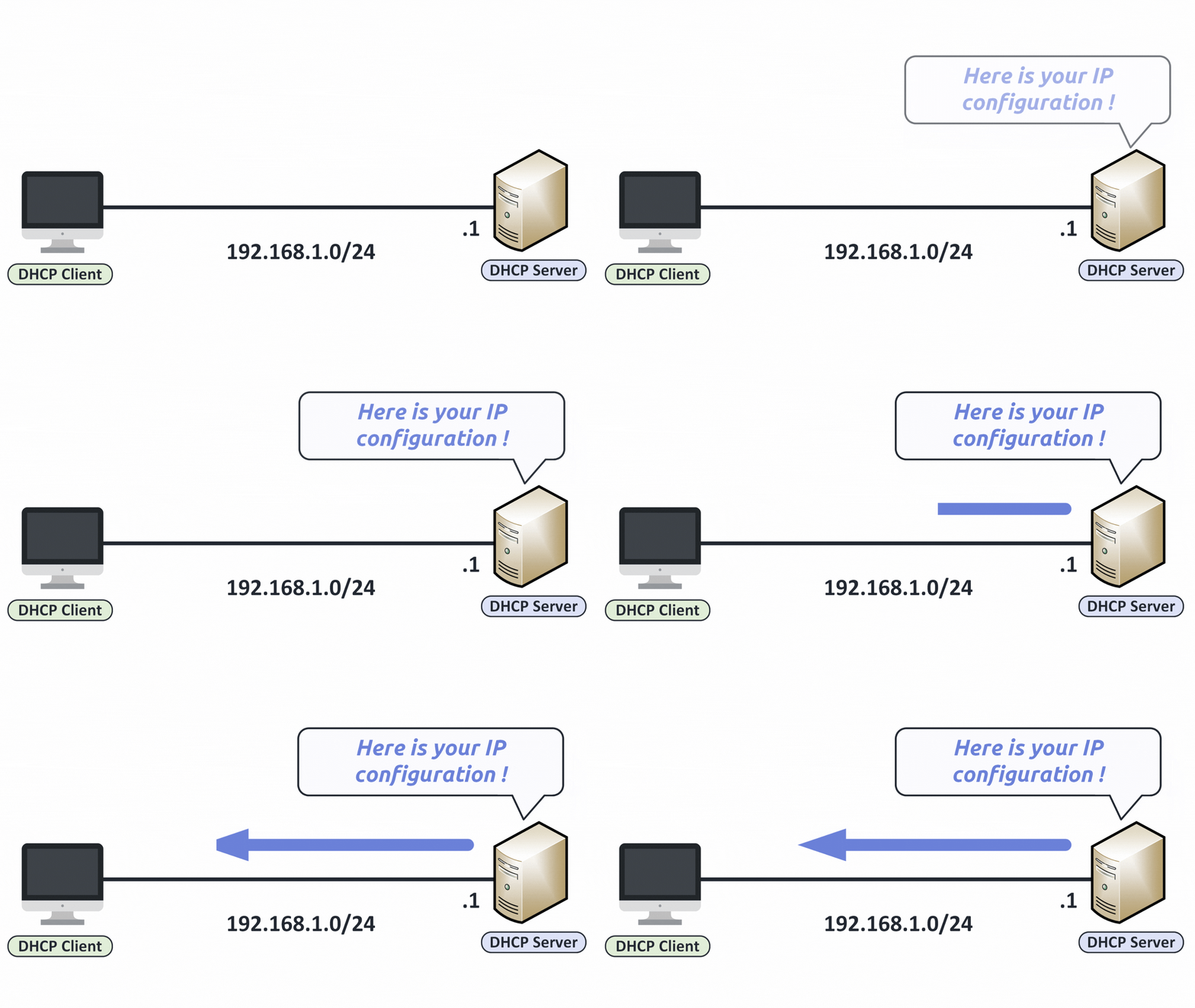
Figure 3 – DHCP server sending IP configuration to the client.
Even though everything happens automatically, you can still check whether your device is using DHCP.
Answer the question below
What is the time period for DHCP settings?
Everything happens automatically, but you can check it yourself.
There are two ways to do it on Windows: from the Control Panel or from the command line.Method 1: Through the Control Panel
Open the Control Panel and go to Network and Sharing Center.
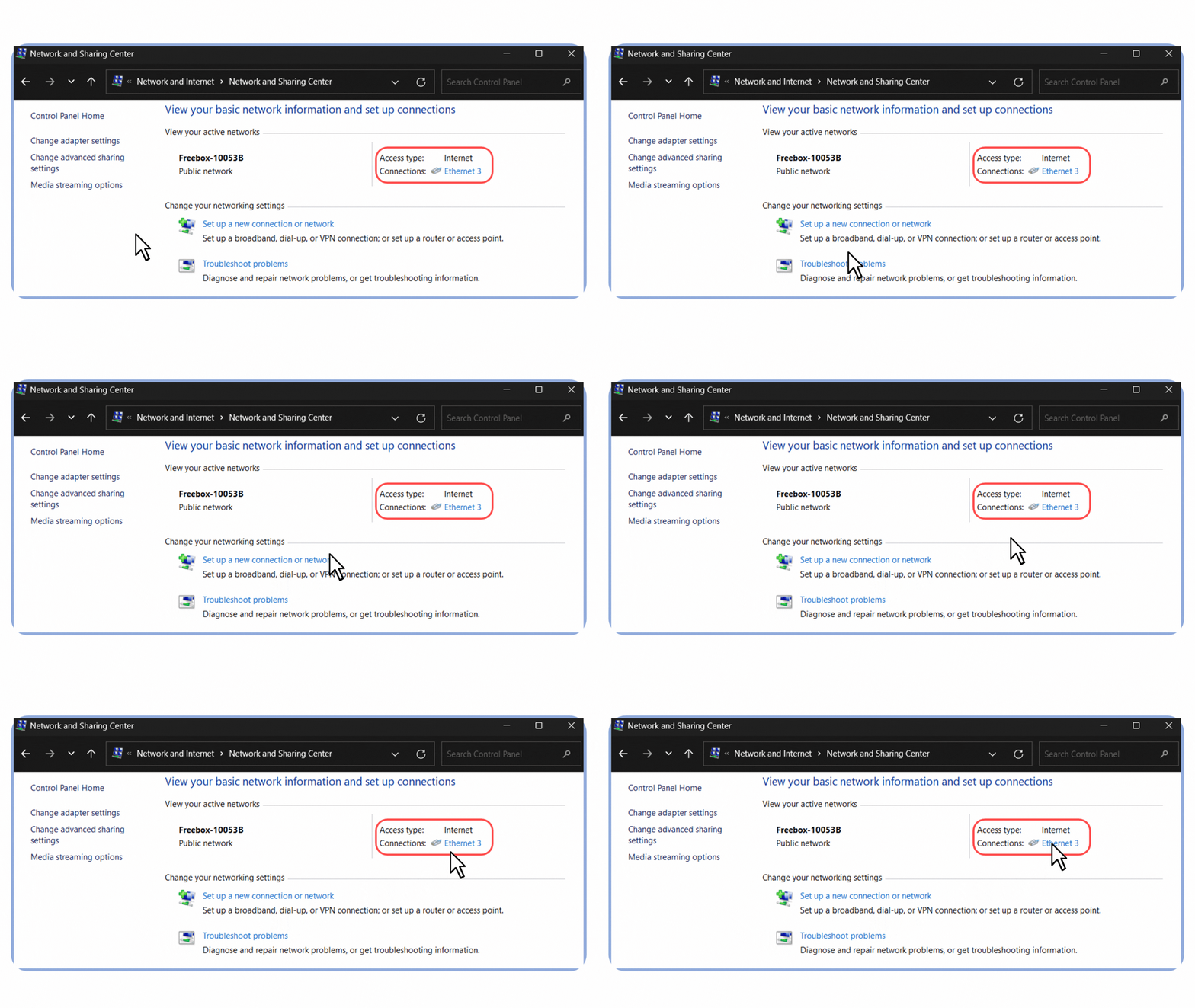
Figure 4 – Accessing the Network and Sharing Center from the Control Panel in Windows.
Click on your active connection. In my case, it’s labeled Ethernet 3 because I’m connected via an Ethernet cable.
Select Properties.
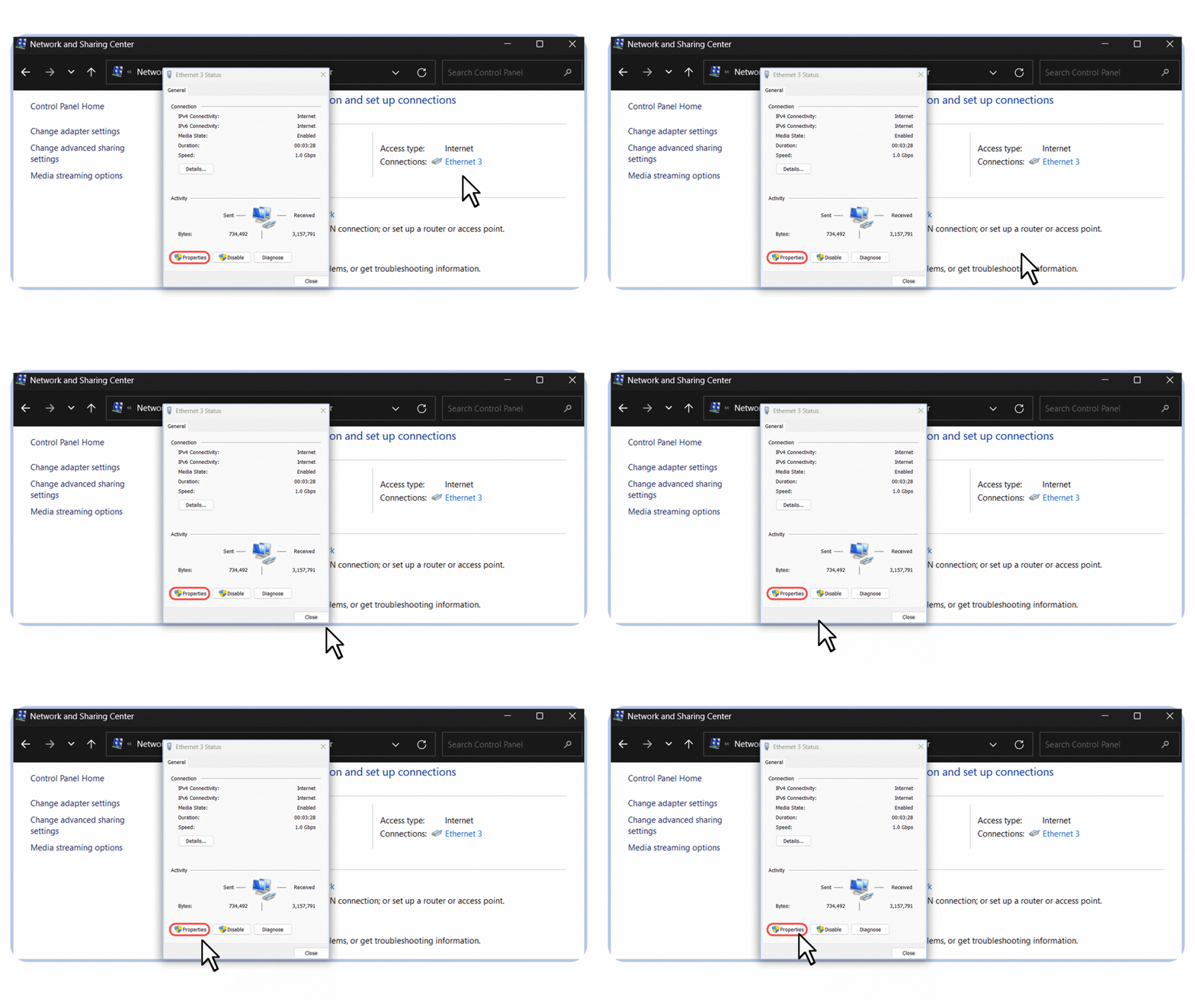
Figure 5 – Opening the Ethernet connection properties in Windows.
4. In the list, select Internet Protocol Version 4 (TCP/IPv4).
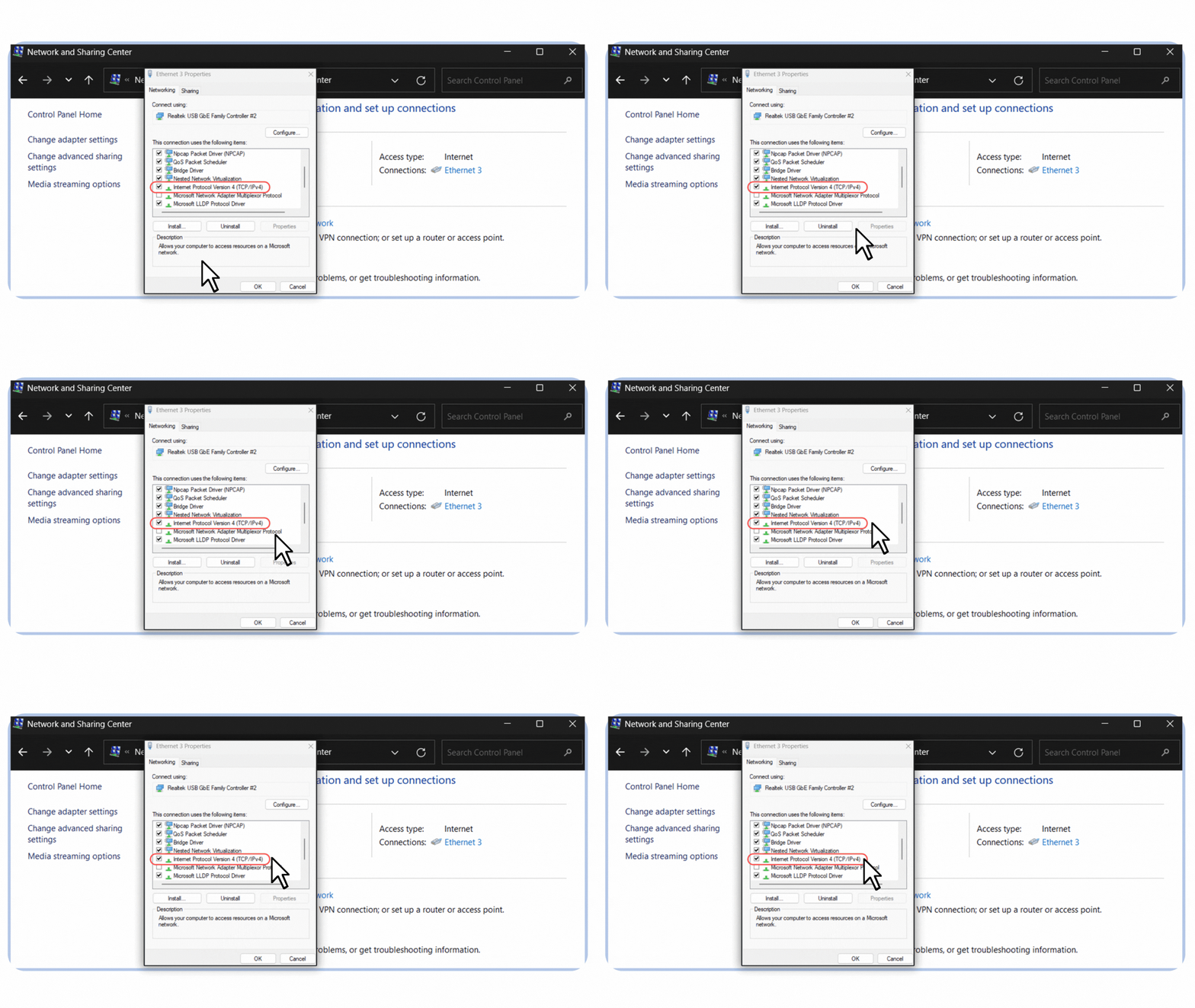
Figure 6 – Selecting Internet Protocol Version 4 (TCP/IPv4) in the Ethernet properties.
5. Make sure both options are set to:
“Obtain DNS server address automatically”
“Obtain an IP address automatically”
If both are selected, DHCP is enabled.
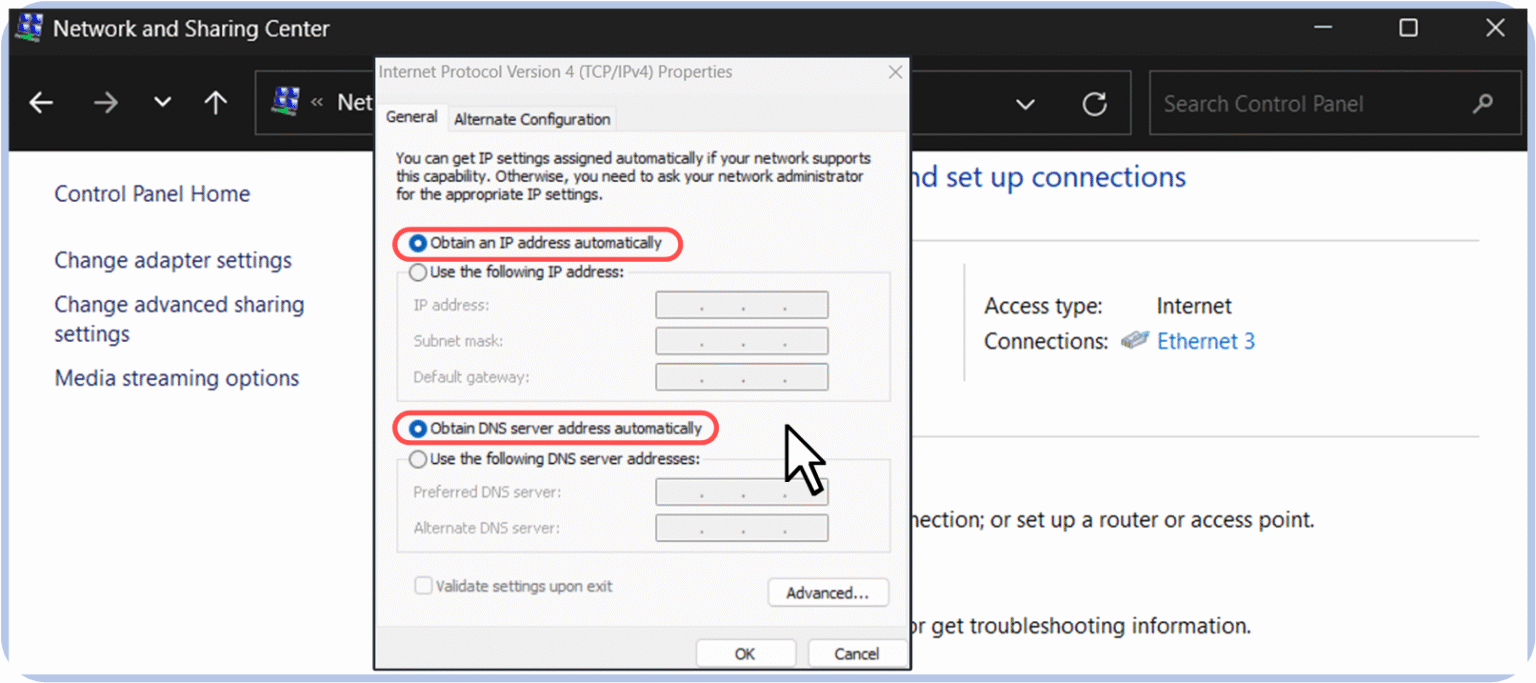
Figure 7 – DHCP enabled with automatic IP and DNS server address configuration.
Method 2: Using Command Prompt
You can also check if DHCP is enabled using the ipconfig /all command.
Open Command Prompt and type:
C:\Users\PingMyNetwork> ipconfig /all

/Output Omitted/

Ethernet adapter Ethernet 3:

   Connection-specific DNS Suffix  . :
   Description . . . . . . . . . . . : Realtek USB GbE Family Controller #2
   Physical Address. . . . . . . . . : 38-7C-76-11-B0-70
   DHCP Enabled. . . . . . . . . . . : Yes
   Autoconfiguration Enabled . . . . : Yes
   IPv4 Address. . . . . . . . . . . : 192.168.1.19(Preferred)
   Subnet Mask . . . . . . . . . . . : 255.255.255.0
   Lease Obtained. . . . . . . . . . : Monday, January 27, 2025 10:47:39 PM
   Lease Expires . . . . . . . . . . : Tuesday, January 28, 2025 10:47:39 AM
   Default Gateway . . . . . . . . . : 192.168.1.254
   DHCP Server . . . . . . . . . . . : 192.168.1.254
   DNS Servers . . . . . . . . . . . : 192.168.1.254
   NetBIOS over Tcpip. . . . . . . . : Enabled

/Output Omitted/
What to Look For
DHCP Enabled: Yes
This confirms that your device uses DHCP to obtain its configuration.DHCP Server
This shows the IP address of the server that assigned your settings (often your home router).
IPv4 Address, Subnet Mask, Default Gateway
These are the parameters your device received automatically.
Lease Obtained / Lease Expires
These lines indicate the duration of the DHCP lease.
Answer the question below
Which field in ipconfig /all tells you that DHCP is enabled?
You saw two lease lines in the ipconfig output.
They tell you how long your device can keep its address.What is a DHCP Lease?
Lease Obtained: When the DHCP server assigned the IP address.
Lease Expires: When the address is no longer valid unless renewed.
When the lease expires, the client must request a new lease. If not, the IP is returned to the available pool for reuse by other devices.
This lease system prevents unused IPs from staying assigned forever. It helps the DHCP server manage addresses efficiently, especially on networks with many clients.
What's Next?
You know what DHCP gives your device and how to check it.
In the next lesson, you will see how DHCP works message by message, from the first broadcast to the confirmed lease.Answer the question below
When a lease expires and is not renewed, the IP returns to the available _______.