A switch is called an intelligent device, but how does it actually learn which device is on which port?
Let's find out with a simple example.Step 1 – Topology Overview
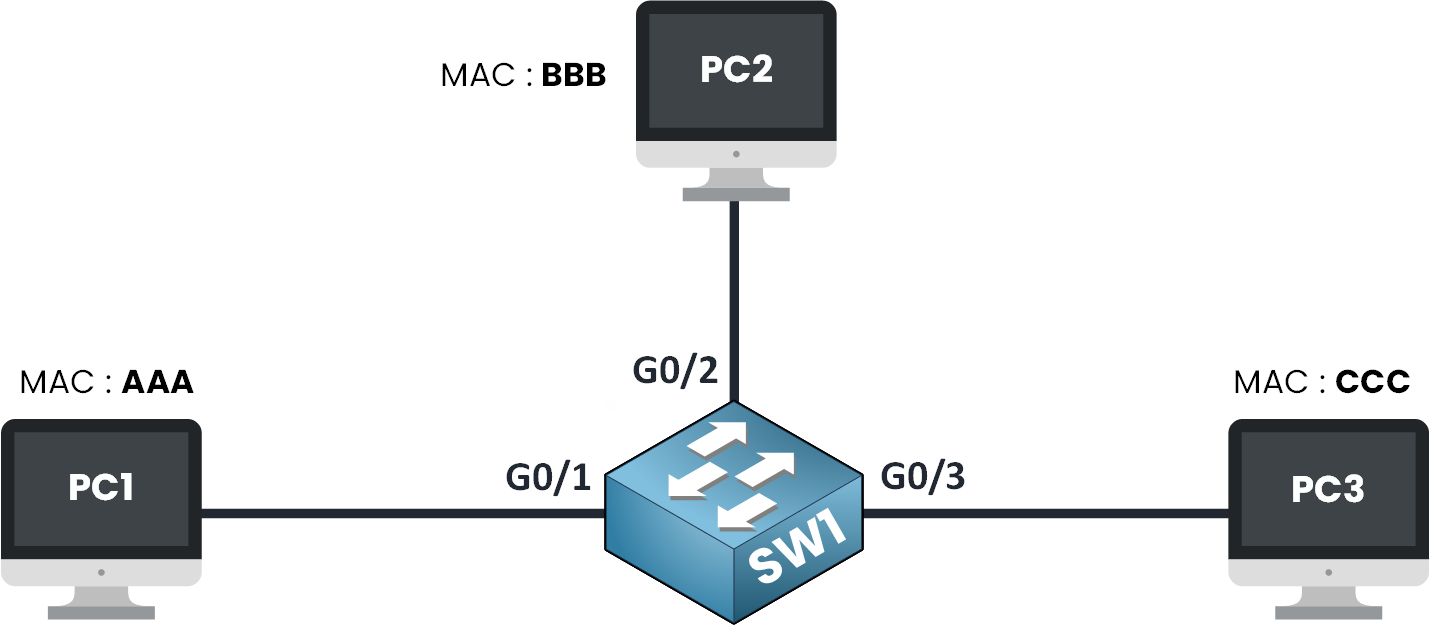
Figure 1 – Switch Learning MAC Addresses (Initial Topology)
In the diagram above, you have three devices connected to a switch called SW1.
Each device has a simplified MAC address:PC1 → MAC address AAA
PC2 → MAC address BBB
PC3 → MAC address CCC
To understand how the switch learns MAC addresses, let's say PC1 wants to send a frame to PC3.
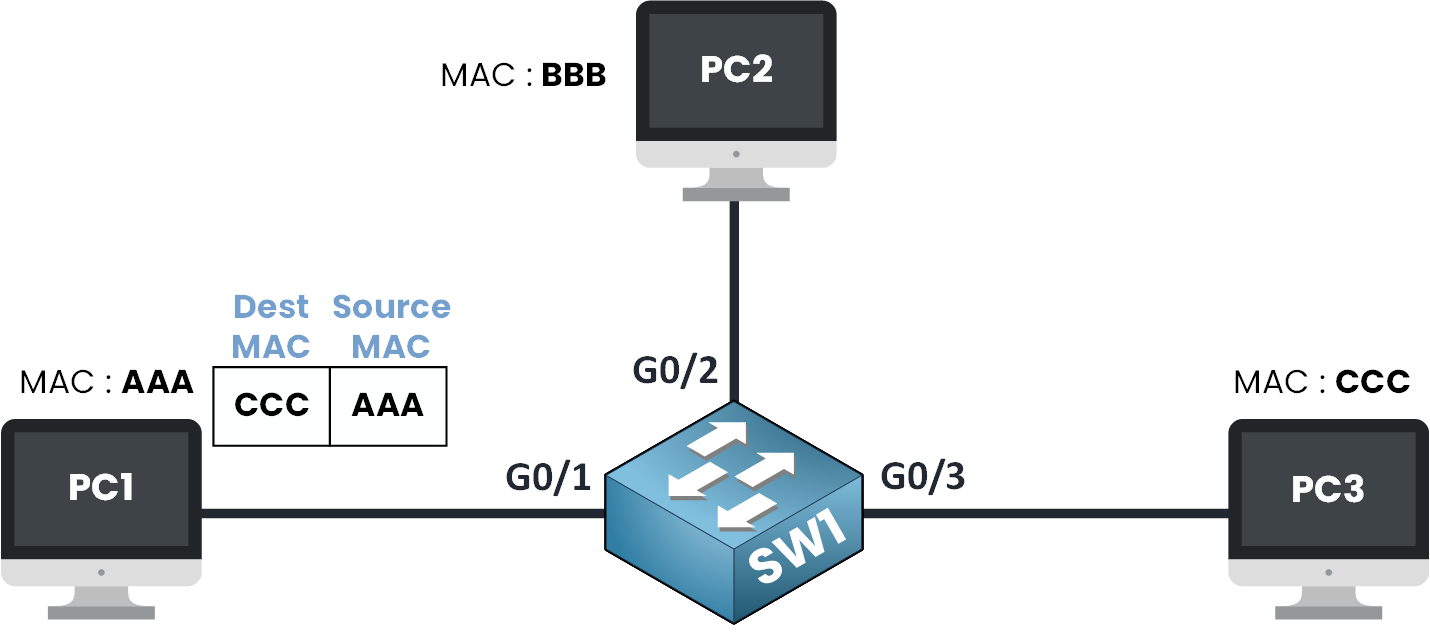
Figure 2 – Switch Learns the Source MAC Address
PC1 will create an Ethernet frame with:
Source MAC: AAA (its own address)
Destination MAC: CCC (the MAC address of PC3)
To keep the focus on the switch, we assume PC1 already knows PC3's MAC address. How a device learns it is covered in the next lesson, on ARP.
When this frame arrives at the switch on port G0/1, the switch reads the Ethernet header and sees that MAC AAA was received on interface G0/1.
Answer the question below
What is the source MAC in the first frame?
Step 2 – MAC Address Table Check
At this point, the switch checks its MAC address table.
This table stores MAC addresses and the ports they are associated with.This table is a list that tells the switch:
"This MAC address is connected to this port."
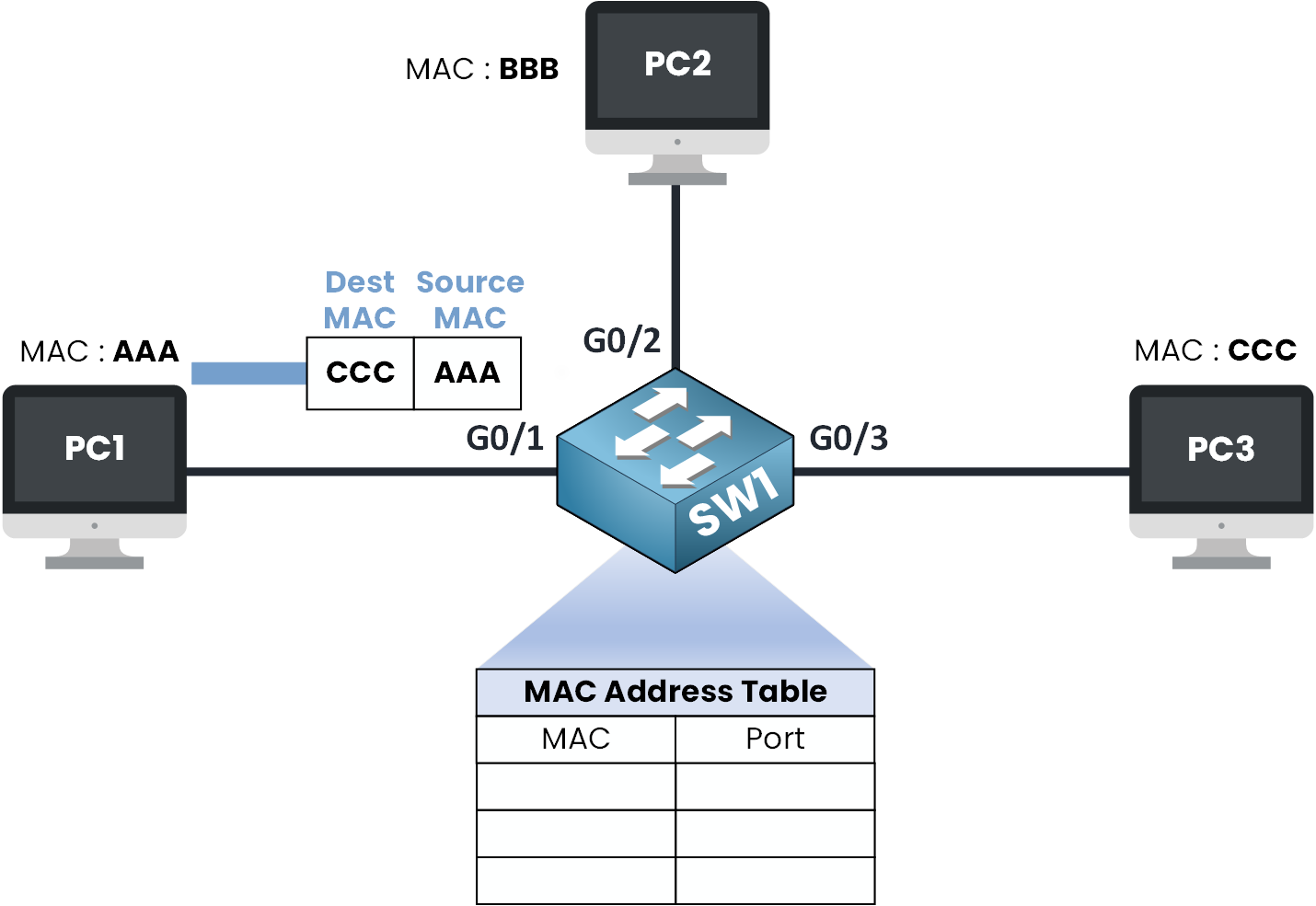
Figure 3 – MAC Address Table Check
But for now, the table is empty, the switch hasn't learned anything yet!
So what does it do?
It reads the Ethernet frame sent by PC1 and looks at the source MAC address: it's AAA.
And since it's the first time the switch sees this MAC address, it says:“Okay, I don't know this one yet… but I just received it on G0/1, so I'll remember that!”
So the switch adds an entry to its table:
MAC address AAA → G0/1
Answer the question below
On which interface does the switch learn MAC AAA?
This is exactly how a switch learns MAC addresses: it reads the source MAC of each incoming frame and associates it with the port it arrived on.
Nobody tells the switch where devices are; it works it out on its own.Step 3 – Looking for the Destination
But now the switch has to send the frame to its destination and that's a different story.
First, it checks its MAC address table again, this time looking for the destination MAC address: CCC (that's PC3).And here's the problem: the switch doesn't know yet where CCC is.
There's no entry for it in the table.So what does it do? When a switch doesn't know where to send a frame, it doesn't guess, it floods the frame.
This means the switch will send the frame out of all other ports except the one it came from.At that moment, the switch is saying:
“I don't know where CCC is, so I'll ask everyone. Let's see who replies.”
Step 4 – Frame Flooding
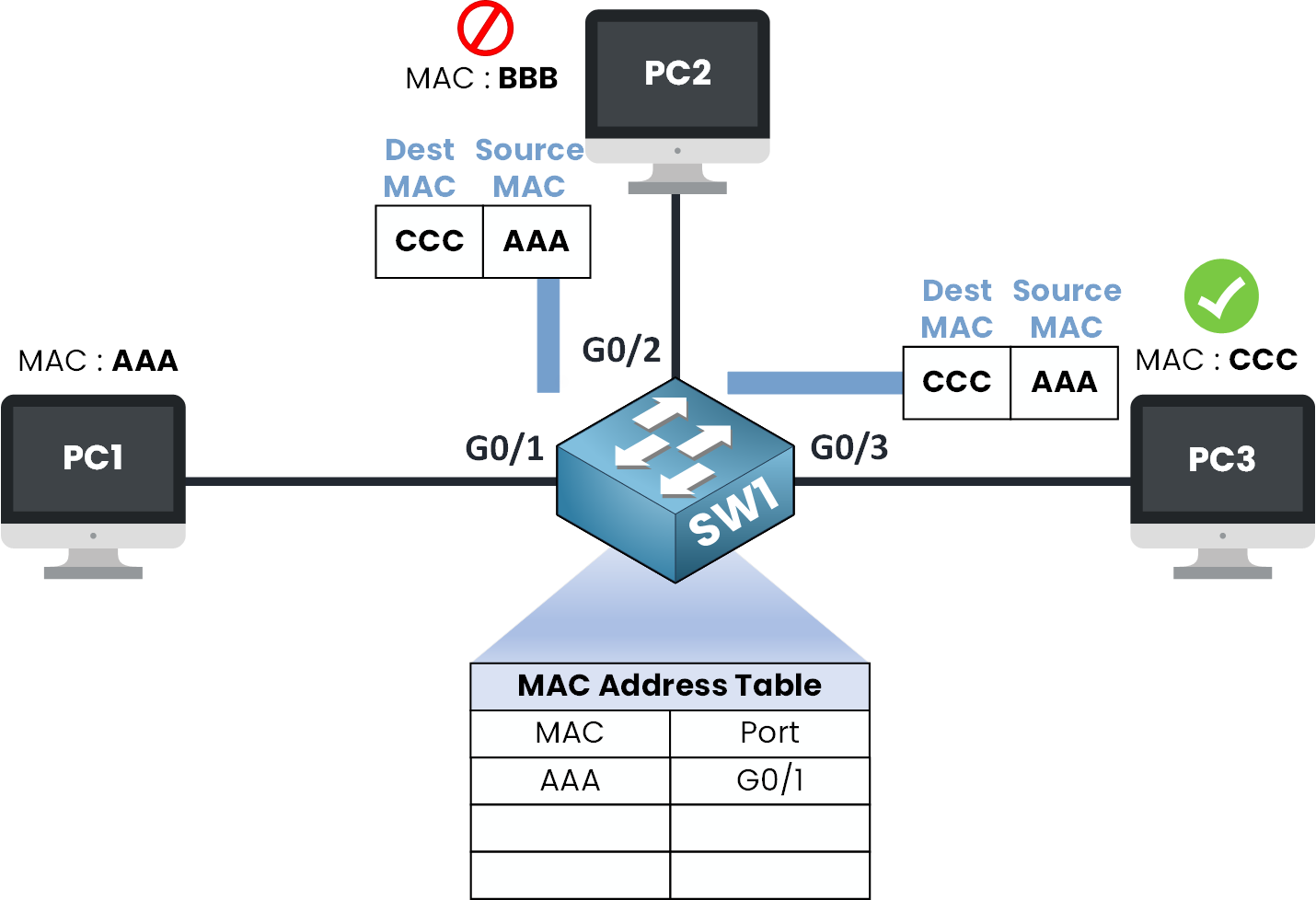
Figure 4 – Frame Flooding and Delivery
At this point, both PC2 and PC3 receive the Ethernet frame.
PC2 looks at the frame, checks the destination MAC address and thinks:
“Hmm… this is for CCC, but my MAC address is BBB, not for me.”
So PC2 just drops the frame.PC3 responds because it sees that the destination MAC address in the frame matches its own.
When PC3 replies, the new Ethernet frame will have:
Source MAC: CCC
Destination MAC: AAA
Step 5 – Switch Learns the MAC Address of PC3
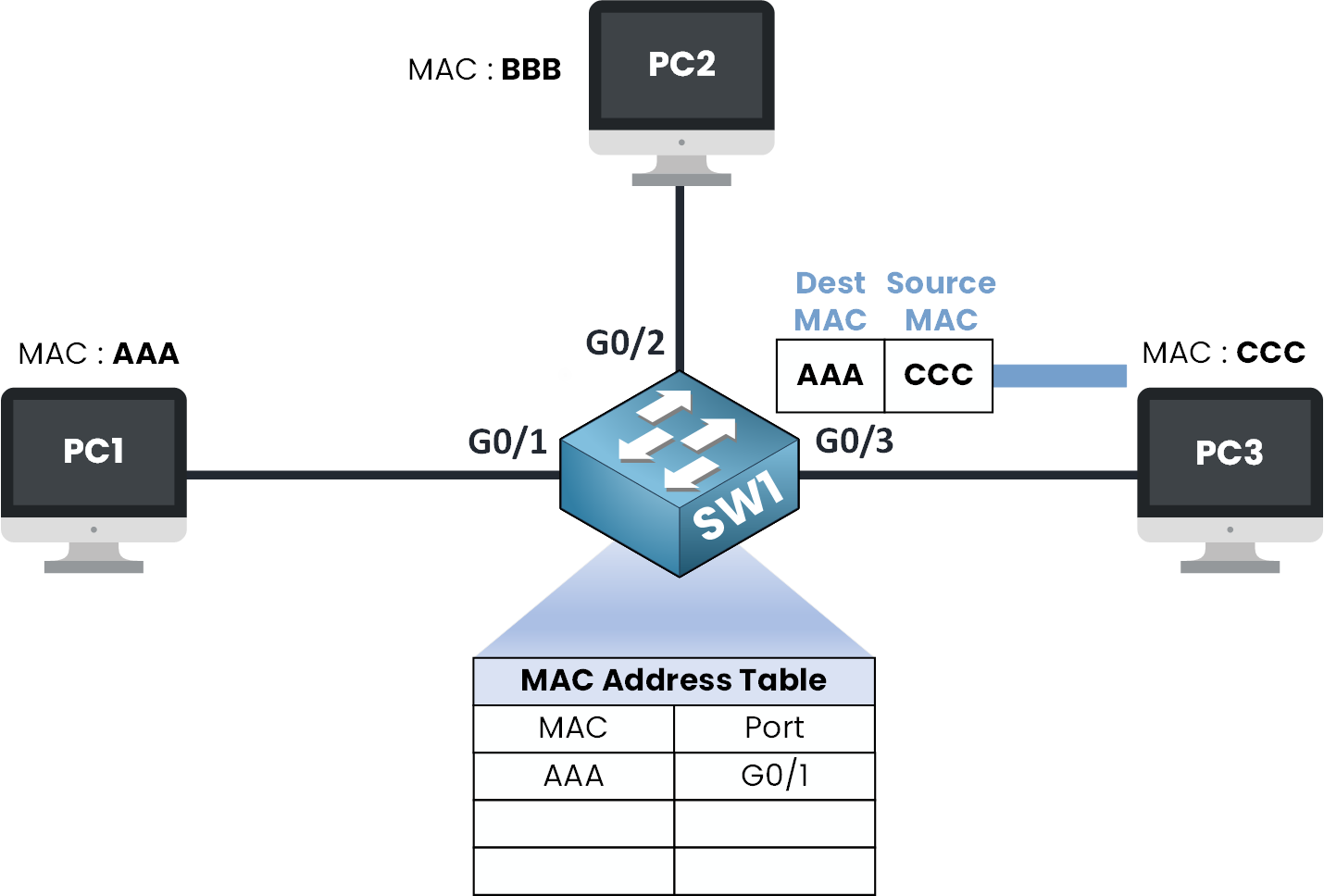
Figure 5 – Switch Learns the MAC Address of PC3
The switch receives this new frame on G0/3.
It takes a look at the source MAC address, which is CCC, and thinks:“Alright, I don't know this MAC yet… but I just got it on G0/3, let me save that in my MAC Address Table.”
The switch adds a new entry to its MAC address table:
MAC address CCC → G0/3
Step 6 – Updated MAC Address Table
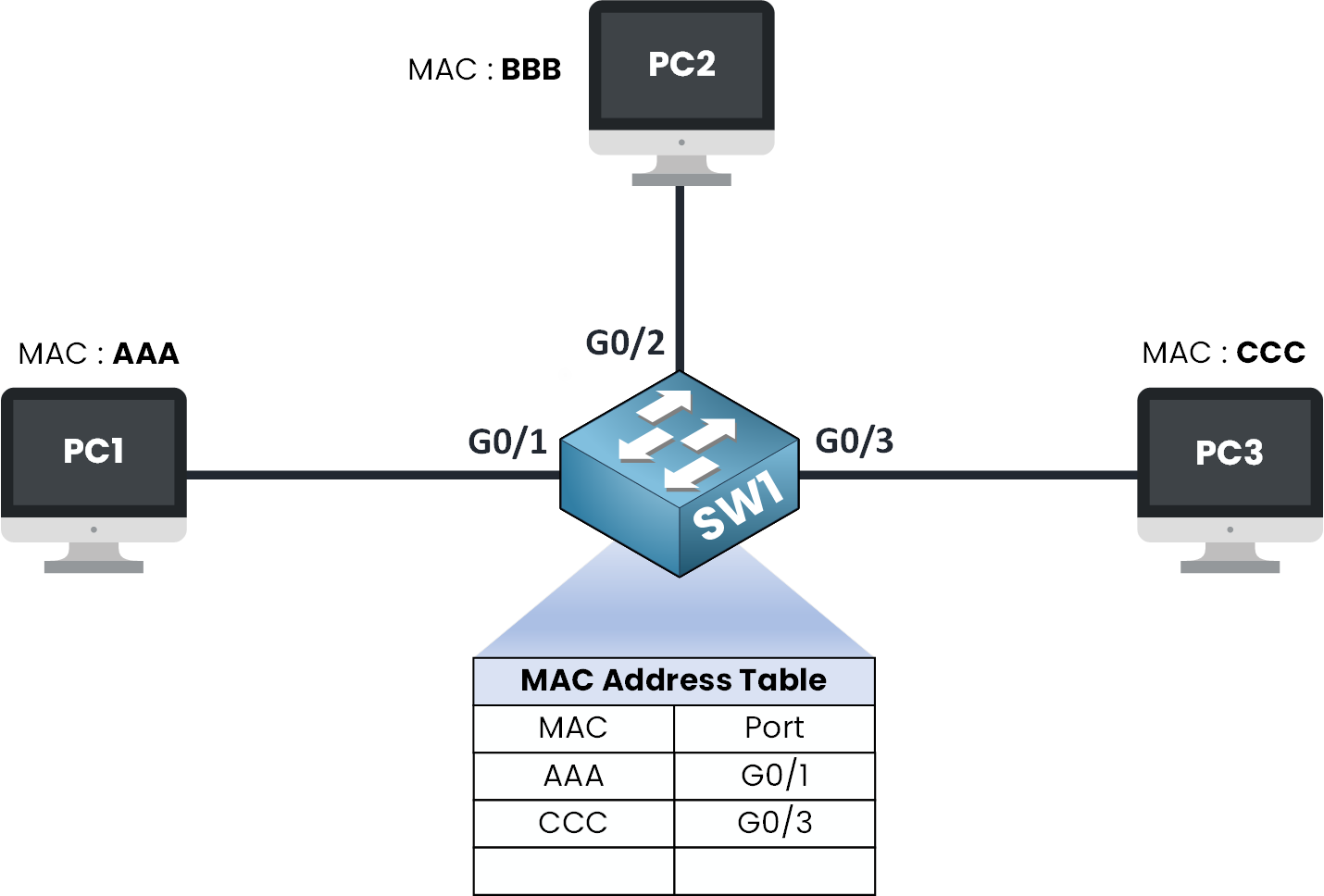
Figure 6 – MAC Address Table
Now the switch knows:
PC1 (AAA) is on Gi0/1
PC3 (CCC) is on Gi0/3
So when the switch sees that the destination MAC address is AAA, it checks its table, finds that AAA is linked to G0/1.
The Ethernet frame is forwarded to PC1 through that port.Step 7 – Frame Delivery
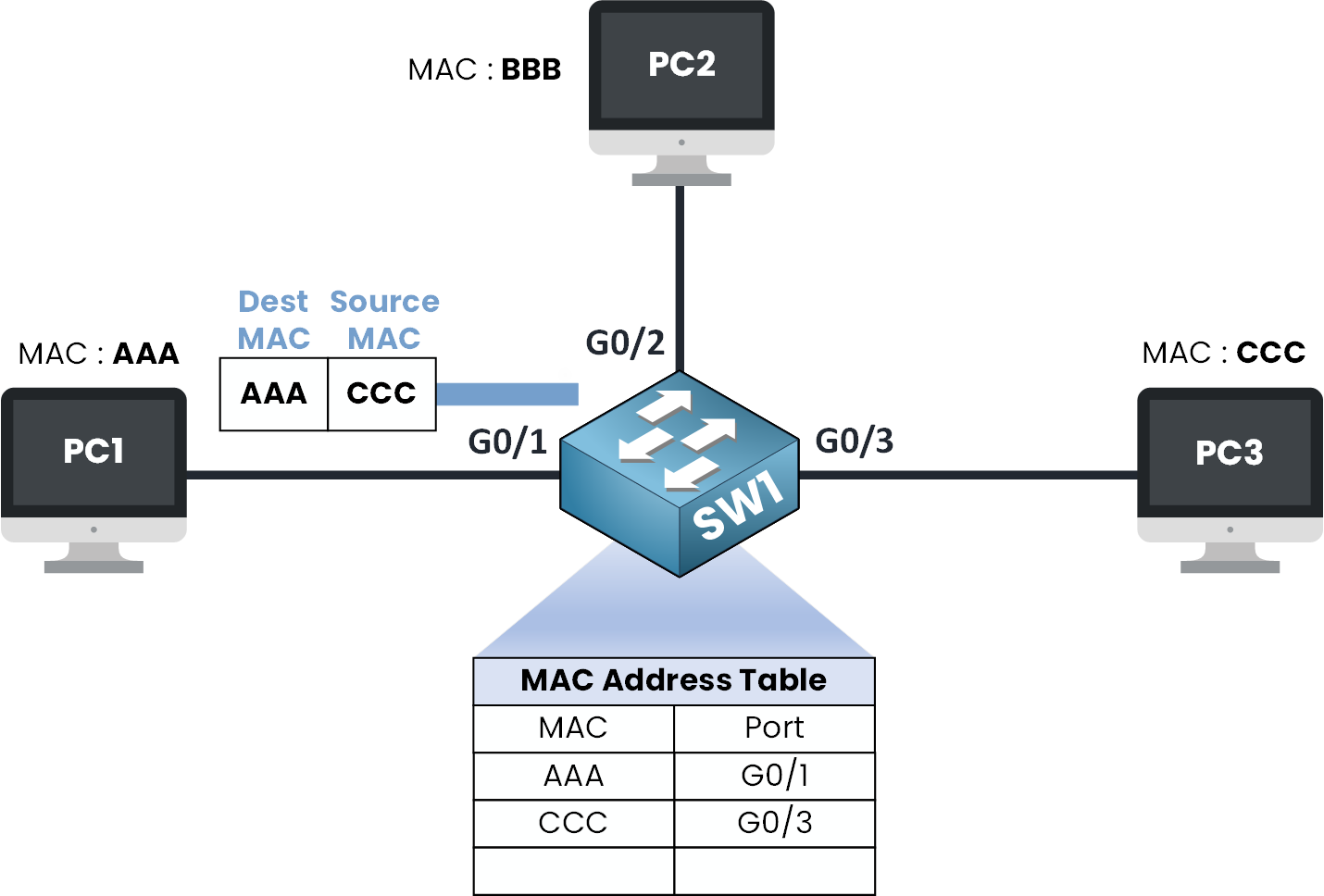
Figure 7 – Frame Delivery
What you need to remember is that the switch will remember the source MAC address and associate it with the port where it received the Ethernet frame.
Now let's take a look at some Cisco CLI commands to see how the switch builds its MAC address table.
Answer the question below
True or false: a switch learns the destination MAC address from each frame.
In this example, you will use real MAC addresses for PC1 and PC3.
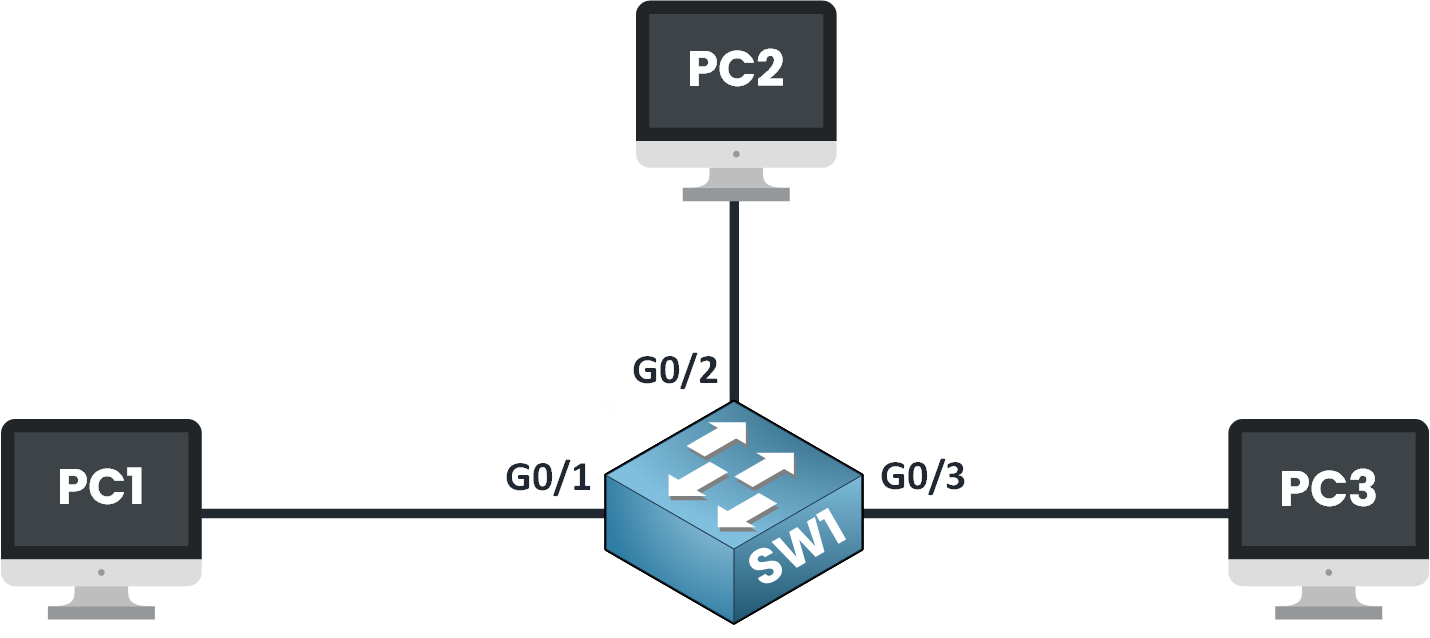
Figure 8 – Topology Used for the CLI Example
Verifying the Switch Is Ready
First, you need to make sure that all interfaces are up.
You can verify that with this command:SW1# show interfaces status Port Name Status Vlan Duplex Speed Type Gi0/1 connected 1 auto auto unknown Gi0/2 connected 1 auto auto unknown Gi0/3 connected 1 auto auto unknownFine, all interfaces are up!
Next, let's take a look at the current MAC address table:SW1# show mac address-table dynamic Vlan Mac Address Type Ports ---- ----------- -------- -----The MAC address table is empty.
No traffic has been seen yet, so the switch hasn't learned anything.
Triggering MAC Learning with a Real Ping
Time to trigger it for real. From PC1, ping PC3:
C:\> ping 192.168.1.30
Pinging 192.168.1.30 with 32 bytes of data:
Reply from 192.168.1.30: bytes=32 time<1ms TTL=128
Reply from 192.168.1.30: bytes=32 time<1ms TTL=128
Reply from 192.168.1.30: bytes=32 time<1ms TTL=128
Reply from 192.168.1.30: bytes=32 time<1ms TTL=128
That ping is the frame from the example above, sent for real. Let's check what the switch learned from it:
SW1# show mac address-table dynamic
          Mac Address Table
-------------------------------------------

Vlan    Mac Address       Type        Ports
----    -----------       --------    -----
   1    0011.22aa.33bb    DYNAMIC     Gi0/1
Total Mac Addresses for this criterion: 1
PC1's MAC address 0011.22aa.33bb is now learned on the G0/1 interface.
Answer the question below
Which port did the switch learn PC1's MAC address on?
Completing the Table After the Flood
At this point the switch still doesn't know where PC3's MAC is, so it floods the frame to every port. PC3 replies, and that reply is what teaches the switch PC3's MAC address, exactly like in the walkthrough above.
Let's check the updated MAC address table:
SW1# show mac address-table dynamic
          Mac Address Table
-------------------------------------------

Vlan    Mac Address       Type        Ports
----    -----------       --------    -----
   1    0011.22aa.33bb    DYNAMIC     Gi0/1
   1    0077.88ee.99ff    DYNAMIC     Gi0/3
Total Mac Addresses for this criterion: 2
The switch has now learned the MAC address of PC3, which is 0077.88ee.99ff.
The switch will now be able to forward the reply directly to PC1 using the G0/1 interface.On a production network, you won't be able to see the MAC addresses being learned one at a time like this.
Since the ping exchange happens really fast, the switch learns both addresses almost instantly.Switches are intelligent devices that remember the source MAC address of the frame received on an interface.
Answer the question below
Which command shows the learned MAC addresses?
The switch doesn't keep MAC addresses forever in its MAC address table.
What Is the Aging Time
Each MAC address it learns is remembered for 300 seconds (that's 5 minutes) by default.
This is what we call the Aging Time.You can check it with the following command:
SW1# show mac address-table aging-time
Global Aging Time:  300
Vlan    Aging Time
----    ----------
Changing the Aging Time
If 300 seconds doesn't fit your network, you can adjust it directly in configuration mode:
SW1# configure terminal
Enter configuration commands, one per line.  End with CNTL/Z.
SW1(config)# mac address-table aging-time 600
SW1(config)# end
%SYS-5-CONFIG_I: Configured from console by console
Verify the new value:
SW1# show mac address-table aging-time
Global Aging Time:  600
Vlan    Aging Time
----    ----------
By default, the aging time is set to 300 seconds, and now you know how to change it for your own network.
Answer the question below
What is the default aging time for MAC addresses on Cisco switches (in seconds)?
Now imagine you have a MAC address table with over 100 MAC address entries.
You only want to check where one specific MAC address is located for example: 0077.88ee.99ff.You don't need to scroll through everything, you can use filters to narrow it down.
Filtering by Address or Interface
To filter by MAC address, you can use:
SW1# show mac address-table dynamic address 0077.88ee.99ff
          Mac Address Table
-------------------------------------------

Vlan    Mac Address       Type        Ports
----    -----------       --------    -----
   1    0077.88ee.99ff    DYNAMIC     Gi0/3
Total Mac Addresses for this criterion: 1
Or you can filter by interface directly:
SW1# show mac address-table dynamic interface Gi0/1
          Mac Address Table
-------------------------------------------

Vlan    Mac Address       Type        Ports
----    -----------       --------    -----
   1    0011.22aa.33bb    DYNAMIC     Gi0/1
Total Mac Addresses for this criterion: 1
Clearing and Relearning Entries
When troubleshooting, you often need to clear these entries and let the switch relearn them.
You can delete all dynamic MAC entries from the table with this command:
SW1# clear mac address-table dynamicIf you run show mac address-table dynamic again right after,
you'll see that the table is now completely empty:SW1# show mac address-table dynamic Mac Address Table ------------------------------------------- Vlan Mac Address Type Ports ---- ----------- -------- -----Answer the question below
Which command clears all dynamic MAC entries?
Now that you understand the basics of how a switch learns MAC addresses per interface, let's explore a more advanced case: learning multiple MACs on a single port.
So far, you've seen the switch learning one MAC address per port!
But a switch can also learn multiple MAC addresses on the same port.Let's take a simple example.
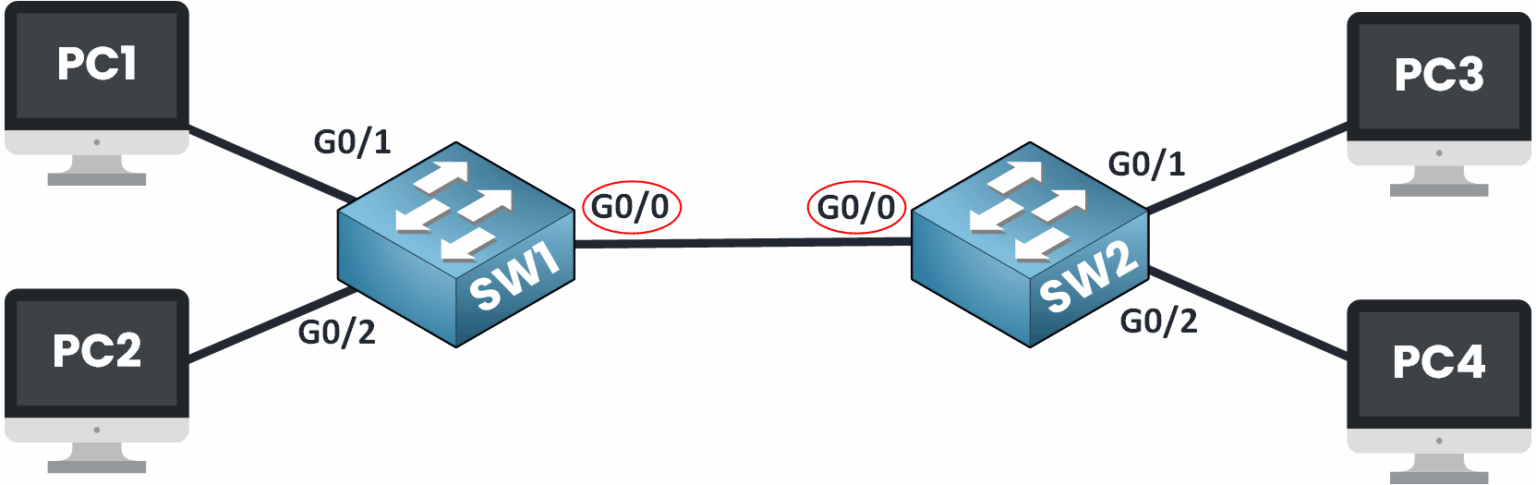
Figure 9 – Learning Multiple MAC Addresses on One Port
SW1's Perspective
Imagine that SW1 is connected to another switch like SW2.
Now let's take a look at the MAC address table of SW1:SW1# show mac address-table dynamic Mac Address Table ------------------------------------------- Vlan Mac Address Type Ports ---- ----------- -------- ----- 1 fa16.3e12.a1b2 DYNAMIC Gi0/1 ← PC1 1 fa16.3e23.c3d4 DYNAMIC Gi0/2 ← PC2 1 fa16.3e34.e5f6 DYNAMIC Gi0/0 ← PC3 1 fa16.3e45.789a DYNAMIC Gi0/0 ← PC4 Total Mac Addresses for this criterion: 4You can see that two MAC addresses were learned on the same interface: Gi0/0.
This happens because both PC3 and PC4 are connected to SW2, and SW2 is connected to SW1 through Gi0/0.Since SW1 reaches PC3 and PC4 through Gi0/0, the switch learns both MAC addresses on that single port.
SW2's Perspective
Now let's look at the opposite direction, the MAC address table of SW2:
SW2# show mac address-table dynamic
          Mac Address Table
-------------------------------------------

Vlan    Mac Address       Type        Ports
----    -----------       --------    -----
   1    fa16.3e12.a1b2    DYNAMIC     Gi0/0   ← PC1
   1    fa16.3e23.c3d4    DYNAMIC     Gi0/0   ← PC2
   1    fa16.3e34.e5f6    DYNAMIC     Gi0/1   ← PC3
   1    fa16.3e45.789a    DYNAMIC     Gi0/2   ← PC4
Total Mac Addresses for this criterion: 4
Same idea here!
SW2 sees both PC1 and PC2 behind Gi0/0 because SW2 is connected to SW1 through that port.
“To reach PC1 or PC2, I need to forward the frame out of Gi0/0.”
Answer the question below
On which interface were multiple MAC addresses learned?
Now that you've seen how a switch learns MAC addresses, let's highlight a few common misconceptions.
A quick recap of the most important things you should absolutely remember.
Common Mistake
What You Really Need to Know
The switch learns the destination MAC address
🚫 False: it only learns the source MAC address
A port can only have one MAC address
🚫 False: a single port can learn multiple MACs, especially uplinks
The MAC address table keeps entries forever
🚫 False: entries expire after the aging-time (default: 300 sec)
Flooding means the switch is broken or misconfigured
🚫 False: flooding is normal when the destination MAC is unknown
You now know how the switch learns MAC addresses.
But how does PC1 even know PC3's MAC in the first place? That's where ARP comes in.Answer the question below
Can a switch learn multiple MAC addresses on one port?